Free · No account needed
Booking QR Code Generator
Paste the booking link from your scheduling tool and get a QR code for the door, the counter and your appointment cards. Customers book, move or confirm a visit without calling.
Free forever. Your codes never expire.The public page your customers open to book: Square Appointments, Calendly, Booksy, Vagaro, Fresha, Acuity, Zocdoc or your own site.
Printed on the sign and on both sides of the cards.
Free static QR. No watermark, no scan limit, and no expiry set by Scanely. The destination must remain available.
Your QR code
Generated in your browser. Scanely does not upload your link to generate this static QR.
Ready for your counter
Make it a print-ready card or sign.
Add a short invitation and download a PDF at its exact print size. No account or watermark.
Add a valid link above to prepare your print.
Print at 100% / actual size. Keep the QR border clear and test one physical sample before printing a batch. Cards are individual pages; ask your printer to arrange them on a sheet.
Scan to book
Content preview. Your PDF uses the selected 70 × 70 mm layout.
For the front desk
Appointment cards with the booking QR, ten to a sheet.
Write the next date and time by hand; the code lets the customer move or confirm the visit online. Download the two-sided PDF as single cards or as a sheet of ten.
Adds a second QR on the back that opens your Google review form. Leave empty for a plain back.
Add a valid booking link above to prepare your cards.
Print at 100% / actual size: page 1 is the front, page 2 the back. Test one card before printing a batch. Cards are individual pages; ask your printer to arrange them on a sheet, or choose a sheet format above.
Front
Your next appointment
Date
Time
Back
See you soon
If you need to cancel or move your appointment, please let us know at least 24 hours ahead.
Content preview. Your PDF uses the Business card · 85 × 55 mm, one card per page format.
Keep the print. Change the link.
Create an account to make an editable QR and see scan counts. Your link, colors, and size will be ready in the creator.
A dynamic QR is a new code. Create and download it before printing; this static download will not become trackable.
What a booking QR code is
A booking QR code opens your online booking page when a customer points a phone camera at it. The page is the one your scheduling tool already gives you: a Square Appointments site, a Calendly event, a Booksy or Fresha profile, a Zocdoc listing. The code only carries that link. Put it on the door for people who walk past when you are closed, on the counter for the customer who wants the next slot before leaving, and on the appointment card you hand over, so a visit can be moved without a phone call.
This page makes the files. Scanely is not a booking system and does not sell printed stickers, signs or cards: the booking happens in your tool, and you print the PDF at home or at a print shop.
Where to find your booking link
Paste the link your customers use, not the one you open to manage the calendar. Scanely refuses the admin links it knows, because a scanned admin link shows the customer a login screen.
- Square Appointments: in the Square Dashboard open Appointments, then Online Booking, then Channels. The booking site link starts with squareup.com/appointments/book or ends in square.site.
- Calendly: open the event type and choose Share, then Copy link. A calendly.com/your-name link opens all your event types; calendly.com/your-name/30min opens one.
- Booksy: in Booksy Biz open Marketing and share your profile. The public link starts with booksy.com; biz.booksy.com is the back office.
- Vagaro: your booking page is vagaro.com/your-business. Copy it from the online booking settings; pro.vagaro.com is the back office.
- Fresha: in Fresha Partner open Online booking and copy the booking link, which starts with fresha.com; partners.fresha.com is the back office.
- Acuity Scheduling: the scheduling page link is under Settings; it looks like your-name.as.me or app.acuityscheduling.com/schedule.php.
- Zocdoc: copy the link of your public practice or doctor profile on zocdoc.com.
- Google Business Profile: the Book button points to a link from your scheduling provider. Paste that provider link here, not a Google Maps listing.
Other tools work the same way: Setmore, Mindbody, SimplyBook.me, Doctolib, Treatwell, Planity and a booking page on your own website. Any public https link is accepted.
Door, counter, card
The sign kit above prints the code with a short call to action at its exact size: a 70 × 70 mm sticker for the door or the mirror, an A6 flyer, a folded table stand for the counter, or a US Letter sign for a waiting room. Keep the empty border around the code, print at 100% and scan one printed copy before you order a batch.
Appointment cards and recall cards
The card kit makes a two-sided appointment card. On the front, your name, a heading and two ruled lines for the date and time you write by hand, next to the booking code with the caption "Scan to reschedule or confirm". On the back, your address and phone, a short note about cancellations, and, if you paste your Google review link, a second code that opens the review form.
Choose "Check-up reminder" for a recall card: dentists, vets, opticians and physiotherapists hand it over or mail it when the next check-up is due, with "Due" and "With" instead of date and time and "Scan to book" under the code. The PDF comes as single cards at 85 × 55 mm or 3.5 × 2 in, or ten to a sheet: an A4 sheet with cut marks, or a US Letter sheet laid out for Avery 5371 and compatible business card sheets. The back page is mirrored, so print double-sided and flip on the long edge. Avery is a trademark of its owner; Scanely is not affiliated with Avery.
Keep the link editable
The free code is static: it contains the booking link itself, and a sticker printed with a Booksy link keeps opening Booksy after you move to Fresha. If you may switch tools, change locations or want to know which placement brings bookings, create a dynamic QR in your Scanely account first and print that one. Its destination stays editable after printing, and it counts scans; a scan is not a booking, and Scanely has no access to your calendar. The Free plan includes three dynamic codes; Starter is $9 per month.
Need the review code alone, or a card that only asks for reviews? Use the Google review QR generator or the Google review card. The QR print templates cover more sign sizes, and you can check the QR in your downloaded image before printing. Workshops, HVAC and appliance installers print the same link on service reminder stickers: oil change, next service or next inspection, on Avery sheets.
Scanely is independent of Square, Calendly, Booksy, Vagaro, Fresha, Acuity, Zocdoc and Google. Their names are trademarks of their owners. Generating a code does not verify a booking page or guarantee bookings.
Check the scan before your print run
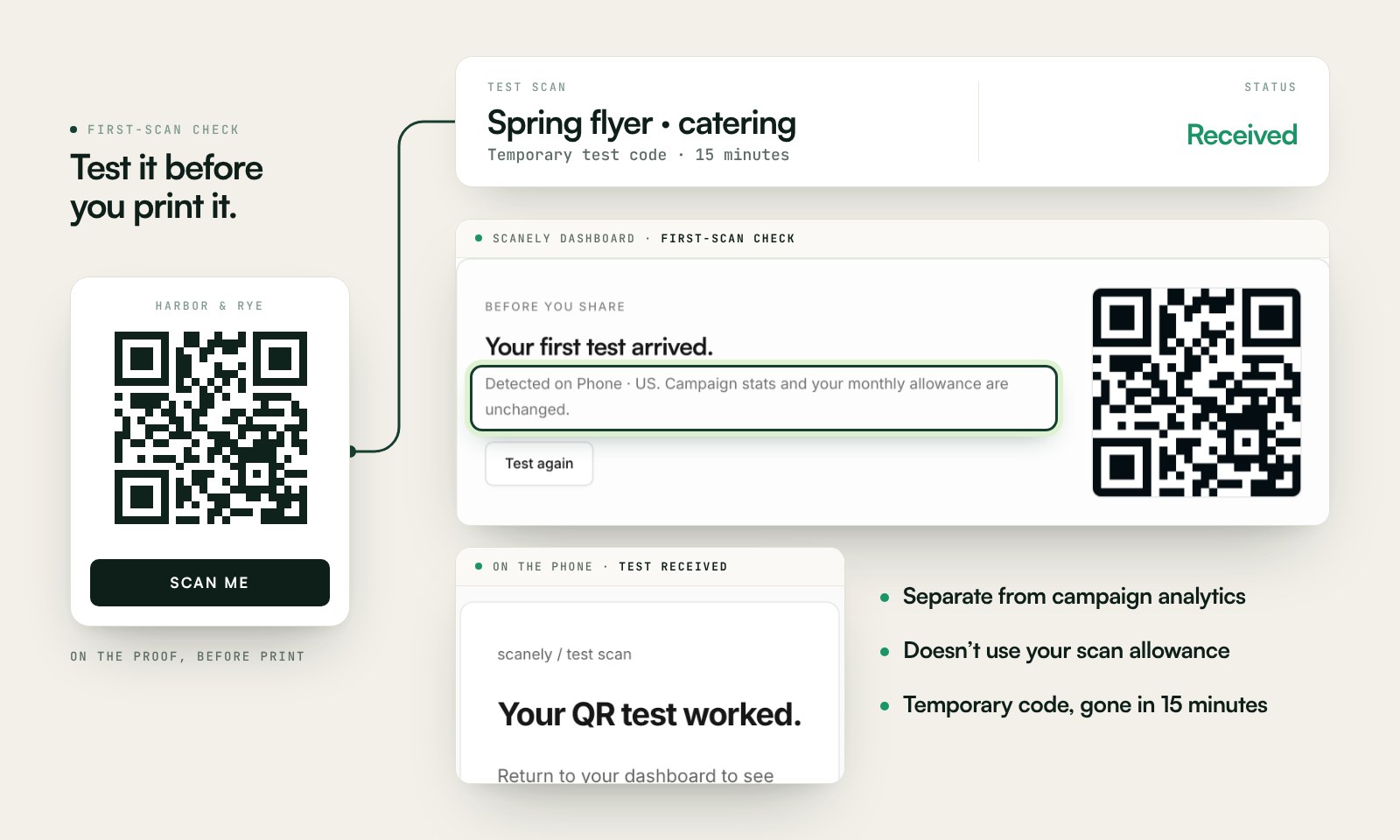
Scan a printed proof of your static download with a phone and check its destination. If you create a dynamic code in your Scanely account, First-scan check gives you a temporary test QR and confirms when your phone scans it.
The temporary code keeps test activity separate from campaign analytics. Never print it; download and test the final QR before ordering a batch.
Questions before you print
Is the booking QR code free?
Yes. Download the QR as PNG or SVG, the sticker or sign as a PDF and the two-sided appointment cards as a PDF. No account, watermark or Scanely scan limit.
Which booking tools work?
Any public booking page: Square Appointments, Calendly, Booksy, Vagaro, Fresha, Acuity Scheduling, Zocdoc, Setmore, Mindbody, Doctolib, Treatwell and your own website. Scanely recognizes the common ones and refuses admin links that only you can open. Scanely is not a booking system: the booking itself happens in your tool.
What happens when I switch booking systems?
A static QR always contains the same link, so a sticker printed with a Booksy link keeps opening Booksy. If you may switch, create a dynamic QR in your Scanely account first and print that one: its destination stays editable after printing.
Which print sizes are there?
For the door and the counter: a 70 × 70 mm sticker, an A6 flyer, an A4 or US Letter table stand and a US Letter sign. For appointment cards: 85 × 55 mm or 3.5 × 2 in, as single cards or ten to an A4 or US Letter sheet.
Can the appointment card carry a review QR on the back?
Yes. Paste your Google review link in the card kit and the back gets a second QR with its own caption. Leave the field empty for a plain back with your address and a short note.
Does Scanely count bookings?
No. A scan is not a booking, and Scanely has no access to your calendar. A dynamic Scanely QR counts scans, so you can see whether the door, the counter or the card is scanned most.
Does it work with the Book button in Google Business Profile?
The Book button points to a link from your scheduling provider; paste that provider link here. A Google Maps listing is not a booking link and would only open your profile.