Use Case
An editable QR code menu for your restaurant
Give guests a menu that is easy to open and easy to keep current. Publish dishes, prices and photos on a hosted Page, then share the same QR through every seasonal change.
Scanely Pages
Your menu, hosted and ready to update
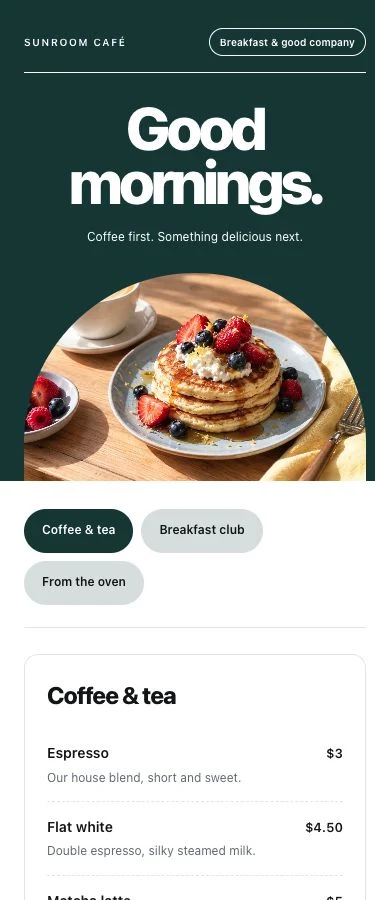
Start with a bistro, supper club or café template. Add menu sections, dishes, descriptions, prices and photos. Customize the design and include opening hours, directions or a button to your existing booking service.
Publish once to get a menu link and downloadable QR. When a price changes or a dish sells out, edit the Page and update it without replacing the printed code. The menu adapts to phones, tablets and desktop screens.
All three menu starting templates are available on Free, with two photos per page and a Scanely footer. Paid plans allow more photos, custom colors and no footer. Menu Pages do not process orders or payments; link to your existing service for those actions.
Make the menu useful, then measure its visits
A good QR menu gives guests the information they came for: clear dishes, current prices and an easy way to find what is available. A hosted menu Page lets you edit those details without maintaining a separate website.
Start with one QR for the whole restaurant. If you later need placement comparisons, create separate dynamic URL codes pointing to the published menu and name them by table or area. A different code per placement lets you compare recorded visits; reprinting the same code does not create a new tracking source.
Analytics show recorded visits to the QR link, including direct link clicks. They do not identify diners, count orders, show time spent reading each dish or measure whether a table is occupied. Use those visit patterns alongside your own service and sales records.
Already have a menu website or hosted PDF? A dynamic URL code can open it and let you change its destination later. Choose a hosted Page when you want to edit the menu itself in Scanely. The Pages guide explains publishing, design controls and allowances.
Key benefits for restaurant owners
A menu ready to share
Start from a hosted restaurant template with dishes, prices and photos. No separate website required.
Lunch vs dinner analytics
Compare recorded QR visits by time of day. Hourly charts use UTC, so check your local offset.
Update without reprinting
Edit menu items, prices and sold-out labels while keeping the same link and printed code.
Compare your placements
Use separate URL codes for tables or branches when you need visit counts for each placement.
Printed menus, static QR codes and Scanely
| Aspect | Print or static QR alone | With Scanely |
|---|---|---|
| Menu updates | Replace printed copies when details change | Save updated dishes and prices on your Page |
| Availability | Tell each guest when a dish runs out | Mark a menu item as sold out |
| Menu link visits | No scan history from a static code | Recorded QR visits in your dashboard |
| Time-of-day insights | No QR visit breakdown | Hourly scan charts in UTC |
| Placement comparison | One shared code has no placement breakdown | Compare separately named URL codes |
| Seasonal changes | Printed content can become outdated | Update the hosted menu, keep its printed QR |
Popular restaurant QR code use cases
Beyond the basic digital menu, restaurants are finding creative ways to use trackable QR codes across the entire guest experience.
Digital menu on every table
Put your published menu QR on a table tent so guests can browse dishes on their phones. Keep text readable, test the final printed size and provide a printed menu for guests who prefer one. Use separate URL codes only where you need per-table visit counts.
Seasonal promotions and specials
Update dishes and prices on the live menu Page for a new season. For a separate promotion, start an offer Page or change a dynamic URL code to your existing campaign site. Review the page before sharing so old sample prices and business details are not left behind.
Feedback collection and Google reviews
Use a Reviews Page for a public review link and a separate private feedback form. Submitted private messages appear in Leads; public reviews remain on the external review platform. Recorded QR visits do not confirm that a guest posted a Google review.
Ordering and payment
Add a button to your existing ordering page or payment service, or use a dynamic URL code to open it directly. That service handles the order and payment. Scanely records QR visits, so use the service’s own reports for completed orders. Learn more about reading scan analytics.
Guest WiFi access
Print a small framed sign at each table or by the door with a WiFi QR code guests can scan to join your network instantly. Removes the awkward "what's the password?" moment and keeps staff from repeating it twenty times a shift.
How to set up Scanely for your restaurant
Choose a menu template
Create a free account and open Pages. Choose a bistro, supper club or café starting template. If your menu is already online, you can create a dynamic URL code instead.
Replace the sample content
Add your restaurant name, dishes, descriptions, prices and photos. Check contact details and any ordering or booking links before publishing.
Publish and scan the final QR
Preview the menu on mobile and desktop, publish it and download the QR. Scan a printed sample at the intended size before ordering table tents or stickers.
Separate placements if needed
One Page QR can serve every table. For per-table analytics, create additional URL codes pointing to the published menu and name them clearly. Each code counts toward the shared plan allowance.
Keep your menu current
Edit prices or mark a dish sold out, then choose Update live page. Check recorded QR visits in analytics without treating them as orders or occupied tables.
Example setup: a café with indoor and patio seating
Publish one café menu Page, then create two dynamic URL codes pointing to it: one named Indoor menu and one named Patio menu. Use the matching code on each area’s table tents. The Page and two URL codes use three shared account slots.
When a pastry sells out, update the menu Page once. Both areas still reach the same menu, while each URL code has its own recorded visit count. This is a setup example, not a customer result or a prediction of higher sales.
Breakfast in the morning. Dinner in the evening.
A dynamic URL code can open different menu URLs throughout the day. Choose your restaurant’s timezone, add daily time windows and keep a main menu URL for all other hours. Schedules require Pro, Business or any Lifetime plan and are not available on Page codes. To schedule between hosted menus, publish each menu Page and use a separate scheduled URL code pointing to their links; each Page and code counts toward your allowance.
Set up a menu scheduleFeatures restaurants love
- Hosted menu Pages with editable dishes, photos, prices and sold-out labels
- Dynamic QR codes - change the destination URL anytime
- Scan analytics by device, location, and time of day
- Custom QR logos on Pro, Business and all Lifetime plans
- Raw scan CSV on Pro, Business and all Lifetime plans
- Daily menu schedules with your timezone on Pro, Business and all Lifetime plans
- PDF table stands and other print kits on all plans
- Campaign tags to organize by zone, season, or promotion
- Free QR code generator to get started
- Design your QR codes in Canva for branded table tents
Frequently asked questions
Can I create a QR code menu without a website?
Can I update dishes and prices after printing?
Do I need a different QR code for each table?
Can I use my existing PDF menu or ordering service?
What can menu scan analytics tell me?
Print a menu stand today
Paste your menu link into a free folded table stand. Choose US Letter or a metric format, add your restaurant name, and test a printed proof.
Make a free menu standFor scan tracking, create a dynamic QR first and use its dashboard Print kit.
Related use cases
Put your next menu behind one QR
Start free. No credit card required. See pricing plans for advanced features.