Scanely documentation
Create and manage your Pages
Build a menu, offer, event or business page. Publish it with a link and QR code, then keep the content up to date from your dashboard.
Updated September 22, 2026
1. Choose a template and create a draft
Scanely hosts your page, so you do not need a separate website. Pages adapt to phones, tablets and desktop screens.
- Open Pages in your dashboard and select New page.
- Browse 15 starting templates across Restaurant menu, Offer, Event & RSVP, Business page, Reviews & feedback, and Simple page.
- Open a preview to inspect the mobile and desktop layouts. Select Use template to create a draft.
- Give the page a recognizable name and start editing.
All starting templates are available on Free. Creating a draft uses one of your account’s shared Pages and QR code slots. Previewing templates does not use a slot. A draft is not public until you publish it.
Client workspace users should select the intended workspace first. Editing requires owner or editor access; allowances come from the workspace owner’s plan.
2. Make the content yours
Templates include sample content. Check business names, photos, contact details, button destinations, prices, event dates and venues before publishing.
- Header and text: introduce the page and explain what visitors should do next.
- Menu: edit section names, dishes, descriptions and prices. Mark unavailable items as sold out.
- Images: replace sample photos with your own and add useful descriptions. Photo limits include header, menu-item and image-block photos, including sample photos.
- Buttons and contact details: add destinations, phone, email, website, address and opening hours as appropriate.
- Form: collect an enquiry, RSVP reply or private feedback. A page supports one form.
- File: paid plans, including Lifetime, can add one file block for a PDF or supported image, up to 5 MB per file.
Add and reorder blocks in the editor to put the most useful content first. Select Save draft to keep unpublished work. Changes are not saved automatically.
Page photos accept JPEG, PNG, WebP and GIF. File blocks accept those image formats and PDF. An empty image block has no public placeholder; choose a photo if you want it to appear.
3. Customize the design
Use the editor’s design controls to change the theme, accent, layout, typography, photo shape, spacing and button style. Your content stays editable when you change the design.
Free includes Bistro, Studio and Forest themes and three preset accent colors. Paid plans, including Lifetime, also include Coral, Night, Ticket, Notes and Bold and custom accent, background and text colors. Design controls are available on every plan.
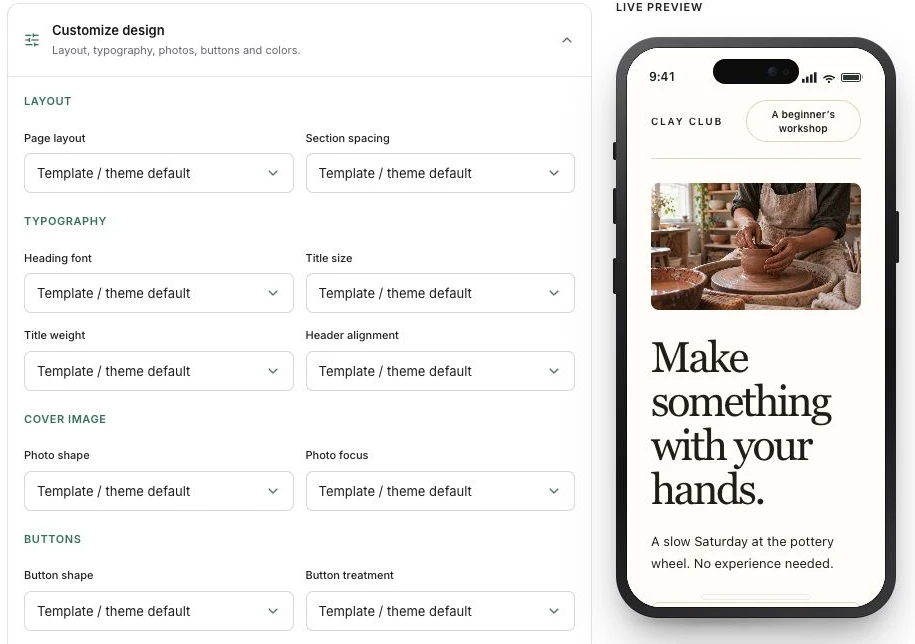
Check contrast and button readability after changing colors. If an account moves to Free, a paid theme falls back to Studio for visitors.
4. Preview and publish
- Review the full page in both mobile and desktop previews. On a narrow screen, use the Edit and Preview controls to switch views.
- Check your content, links, prices, venue and form wording.
- Select Publish page. This saves the current content and makes the page public.
- Select Open page to check the live result. Use Copy link or Download QR when you are ready to share it.
Your page uses a stable Scanely link such as https://scanely.io/r/your-code. Publishing an existing draft does not consume another slot. Hosted Pages are not indexed by search engines; share the link or QR directly.
Update or pause a published page
Open the page from Pages, edit it and select Update live page. This replaces the live content while keeping the same link and printed QR. There is no separate unpublished revision of a live page.
For a revision you want to keep offline, choose Pause page before you start editing. Edit and save while it is paused, then select Make live. Pausing preserves the content and slot but stops visitors from opening the page.
Some public pages are cached for up to a minute. If you still see the previous saved content, wait briefly and reload. Unsaved changes remain only in the editor; it warns before you leave with work unsaved.
Collect enquiries, RSVPs and feedback
Add or enable a form block. Email and consent are required. You can make the name optional, add an optional phone field, and show or require a message field. Edit the form heading, introduction, field labels, consent text and success message to explain what happens next.
Submissions appear in Leads for your selected workspace. You can read the full message and contact details on every plan. For one page’s responses, open QR design, analytics & leads from its editor.
On that QR detail screen, the lead email setting controls notifications to the page owner’s account email. Paid plans, including Lifetime, also provide Export all CSV for the selected lead scope.
Monthly form allowances are shared across all the owner’s pages and workspaces. At the limit, new submissions pause until the next calendar month or an upgrade. Visitors see a paused notice, while the rest of the page remains available. Existing leads remain in the inbox.
Public reviews and private feedback
In a Reviews template, add your Google review link or another public review URL in the Buttons block. The public review button stays hidden until it has a destination. The private feedback form sends responses to Scanely Leads; it does not publish them as public reviews.
Plans and allowances
Pages and other dynamic QR codes share the account owner’s slot allowance across workspaces. Drafts and paused pages also count. The form-submission allowance resets each UTC calendar month.
| Plan | Shared Pages & QR slots | Leads / month | Photos / page | Per uploaded photo |
|---|---|---|---|---|
| Free | 3 | 10 | 2 | 1 MB |
| Starter | 50 | 100 | 8 | 2 MB |
| Pro | 500 | 1,000 | 8 | 2 MB |
| Business | Unlimited | Unlimited | 8 | 2 MB |
| Lifetime Starter | 50 | 1,000 | 8 | 2 MB |
| Lifetime Pro | 100 | 1,000 | 8 | 2 MB |
| Lifetime Business | Unlimited | 1,000 | 8 | 2 MB |
Free: all 15 templates, three themes, preset accents, design controls and a Scanely footer. The brief Scanely screen used for Free URL redirects is not shown before a hosted Page.
Every paid plan, including Lifetime: all eight themes, custom colors, file blocks up to 5 MB, lead CSV export and no Scanely footer. Lifetime includes these Page files; separate hosted File / PDF QR codes have different subscription requirements.
Reaching the monthly scan-tracking allowance stops additional scans being recorded, rather than taking the page offline. The lead allowance is separate and can pause new form submissions. Explicit pause, expiry and per-code maximum-scan settings can still stop access.
When something needs attention
I cannot create another page
Check the shared slot allowance. Existing QR codes, drafts and paused pages count too. Choose a plan with more slots if you need to keep them all.
My page does not open for visitors
Check that it is published and marked Live. On its QR detail screen, also check password protection, expiry and any per-code maximum scan count. A draft preview is not the public link.
My photo will not upload
Check its format, file size and the page’s photo count. Sample photos also count. Replace an existing photo when you want to change it without adding another photo placement.
The form is paused or a lead email is missing
Check the account-wide lead allowance in the editor or Leads inbox. For a missing email, first check whether the submission appears in Leads, then check the page’s lead email setting and the owner’s spam folder. Lead emails go to the page owner, not the visitor.
For more help, contact Scanely with the page name and the error you see. Keep passwords and customer lead details out of your message.