Scanely documentation
Set up Scanely in WordPress
From installation to your first QR, with a separate path for WooCommerce order documents.
Updated September 14, 2026
1. Install the plugin
- Download the Scanely plugin ZIP.
- In WordPress, open Plugins → Add Plugin → Upload Plugin, select the ZIP and choose Install Now.
- Activate Scanely, then open Scanely → Get started. You can also use the Get started link in the installed plugins list.
Requirements: WordPress 6.3 or newer and PHP 7.4 or newer with mbstring. OpenSSL is required to connect an account. PHP GD is required for QR images in customer emails and WP Overnight PDFs. Browser PNG/SVG exports and native print templates work independently of GD.
WooCommerce is optional. Static content QR codes work without it. A production WordPress site must use HTTPS to connect to Scanely.
Updating an existing installation: upload the new ZIP and choose the replacement option. Keep the plugin installed to preserve its library and settings. Uninstalling removes its local data.
2. Connect your Scanely account
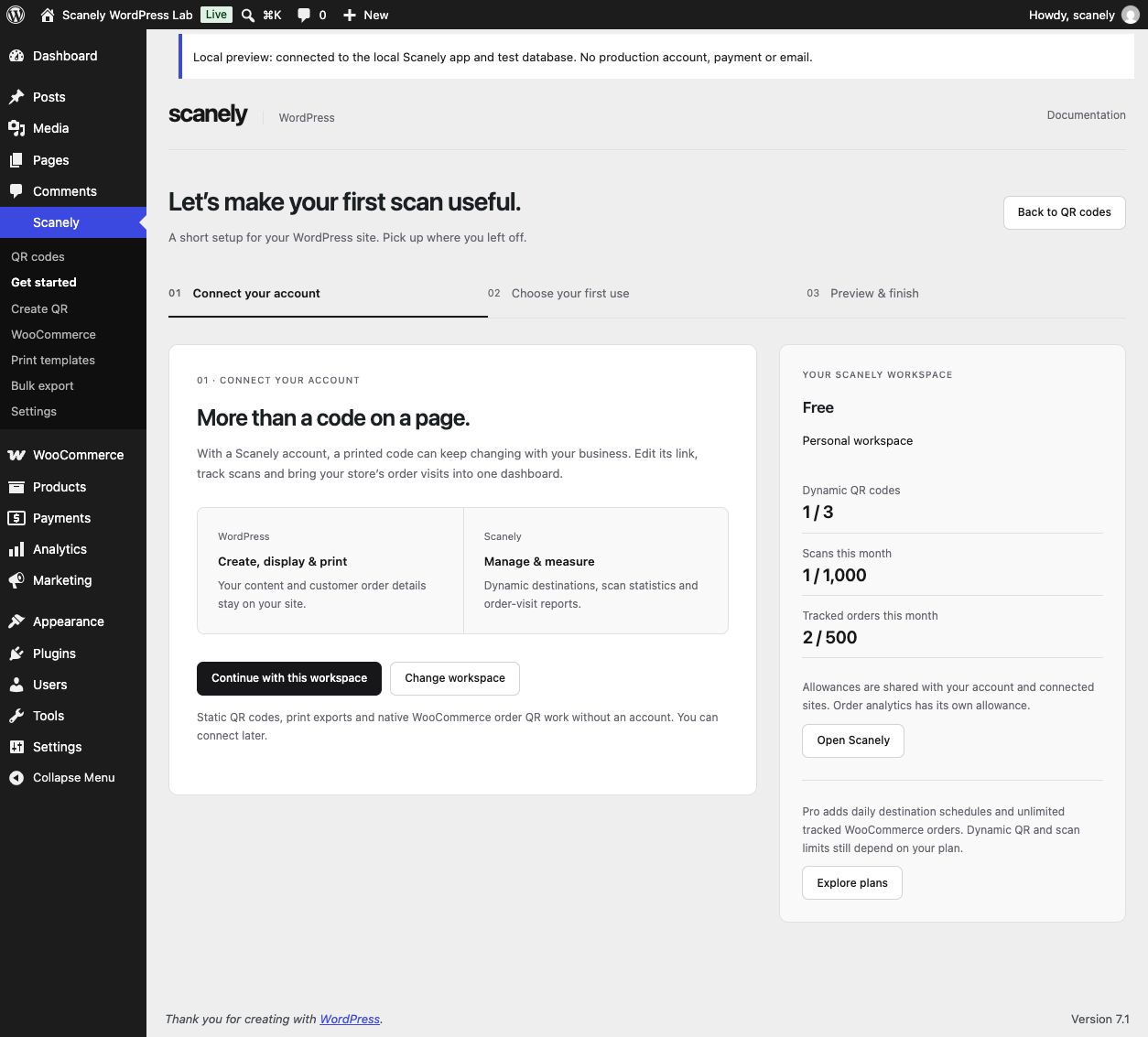
- In Get started, choose Create free account / Connect.
- Sign up or sign in at Scanely. Review the WordPress site and select the workspace you want to use.
- Approve the connection and return to WordPress. Your setup progress is retained.
- Check the workspace and account allowances displayed beside the setup.
Every Scanely plan supports the native WordPress connection, including Free. You do not need to generate a Business API key. If you have more than one site, account limits are shared with all connected sites and the Scanely app.
Free includes 3 dynamic QR codes, 1,000 recorded scans per month and 500 new tracked WooCommerce orders per month. QR scans and tracked orders have separate allowances.
You can choose Continue with local tools to use static QR codes and native order features without connecting. Connecting later does not change static codes that have already been printed.
3. Create your first QR
- Choose Share a link or content.
- Give the QR a name and enter a public destination URL, such as a page, product, menu or PDF.
- Choose Static for a fixed destination, or Dynamic when connected to Scanely.
- Select Create QR & preview, check the destination with your phone, then download PNG/SVG or open Make a print.
A dynamic QR uses a shared account slot and encodes a stable Scanely short link. Its destination can change after printing. A static QR encodes its destination directly and does not record Scanely scan statistics.
The full Create QR editor can select published posts, pages, WooCommerce products and Media Library PDFs. It also includes appearance controls and, on Pro, Business and all Lifetime plans, daily schedules with timezone and overnight support. Scanely hosts the dynamic link; WordPress-hosted PDF files remain on your WordPress hosting.
If a dynamic save fails, the same local draft is retained. Retry that draft instead of creating another QR. For an existing Scanely link QR, use QR codes → Use an existing Scanely QR.
4. Set up WooCommerce order QR
- Activate WooCommerce and return to Get started.
- Choose Help customers after purchase.
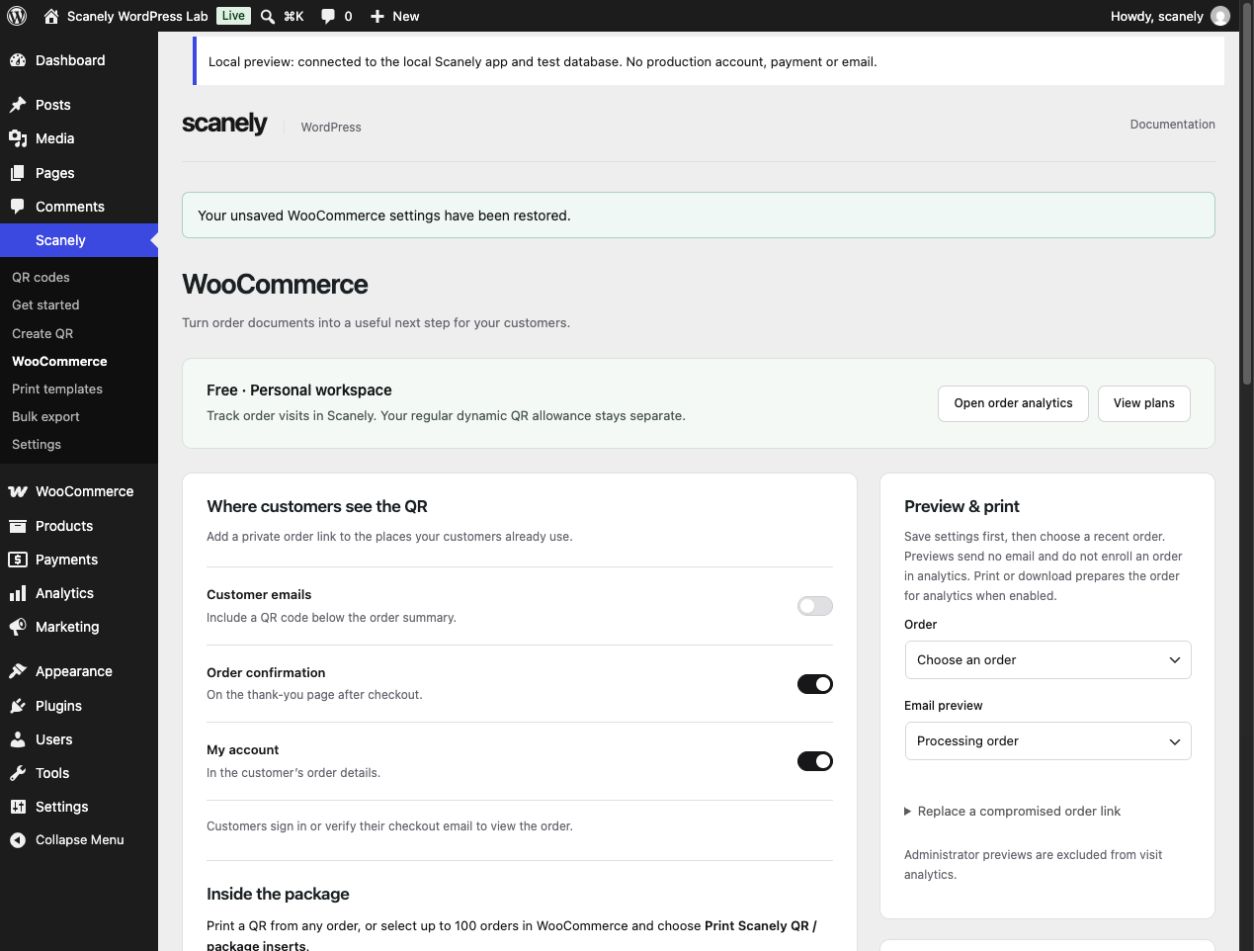
- Choose the placements you want: customer emails, order confirmation and/or My Account.
- Optionally enable Track order visits in Scanely after connecting a native Scanely account.
- Choose Save setup & preview. This applies your placement switches to the store.
Email types, caption, QR size, Buy again, review links and product help are available in Scanely → WooCommerce. Setup preserves these existing settings. Optional PDF invoice and packing-slip placement supports PDF Invoices & Packing Slips for WooCommerce by WP Overnight; native emails and package printing do not need that plugin.
The order QR opens a page on your store. Registered buyers sign in to the matching customer account; guests verify their checkout email. Eligible buyers can add available items to their current cart, leave native product reviews and open help links. They review the cart before normal checkout. No payment is automatic.
Order QR is private order access, not carrier shipment tracking or a payment request. Keep printed links private. Replacing an order link invalidates earlier printed copies and verified guest sessions.
5. Preview and print
Select an existing order in the final setup step and open the relevant preview. Previewing an email does not send it. Opening a document or print preview does not admit the order to analytics. Explicit printing or downloading prepares the order for analytics when enabled.
If there are no orders yet, finish setup and return to Scanely → WooCommerce → Preview & print after the first order arrives.
- Single order: use the Scanely QR panel on the WooCommerce order screen.
- Order batch: open Scanely → Bulk export → WooCommerce orders, filter by status, store-timezone creation dates or exact order ID, and select up to 100 orders across pages.
- Print studio: choose a 4 × 6 in package insert, US Letter or A4 labels; download vector PDF or print directly.
Keep the white quiet zone around each QR. Print at 100% scale with browser headers and footers disabled. Test a sample on the actual paper and printer before making a large batch. The 100-order print batch size is independent of monthly analytics allowance.
6. Understand the reports
Dynamic campaign scans are available in Scanely’s QR analytics. Verified, consented order-page visits appear in Order analytics, grouped by store, time and placement. WordPress shows account status and summaries, with links to the full reports.
Free supports 500 new tracked orders per UTC calendar month; Starter supports 2,000. Pro, Business and all Lifetime tiers support unlimited tracked WooCommerce orders. Reprints, repeated visits and reconnecting the same scope do not charge another order slot.
At the allowance limit, existing tracked orders can continue recording eligible visits. Additional orders wait for a future allowance or an upgrade. Customer access and local printing remain available.
Customer names, emails, products and private access URLs remain in WooCommerce. Scanely receives opaque references and consented visit events. Order visits are not evidence of a new purchase, delivery or revenue. Purchase attribution is separate and requires an eligible plan and visitor consent.
WordPress queues synchronization in the background and retries outages. A working WordPress cron is required. Use Sync pending orders for a manual retry; unsent visits expire after 30 days. See all allowances and retention details.
When something needs attention
Connection did not finish
Check HTTPS, OpenSSL and the site’s ability to reach scanely.io. Start again from Get started or Settings if the request expired. Use the same WordPress administrator who initiated the connection. You can continue with local tools while resolving connection issues.
The email preview has no QR
Save the email placement first and check that the preview’s email type is enabled. PHP GD must be available. Custom email templates need to include the standard WooCommerce order-meta hook.
No order visits appear
Check the native connection, Order analytics switch, monthly allowance and sync status. Administrator previews and image loads never count. A buyer must verify access and agree to analytics before a visit is recorded.
WooCommerce is unavailable in setup
Activate WooCommerce and use an administrator with WooCommerce management permission. You can still create content QR codes without WooCommerce.
For help, contact Scanely with your WordPress, WooCommerce and PHP versions and the exact error message. Do not include API keys, passwords or private customer order links.