Free · No account needed
Church Connect Card Maker
Paste the link your visitors should open, a connect form, your Scanely welcome page or your giving page, and get a QR code with two-sided connect cards, a bulletin insert and a "Scan to give" sign. Visitors connect from the pew without a pen; the paper version is on the back for those who prefer it.
Free forever. Your codes never expire.Your connect form or welcome page: the Scanely Connect card template, a Planning Center form, a Google Form, Breeze, Text In Church or your own site.
Printed on the cards and on the giving sign.
Free static QR. No watermark, no scan limit, and no expiry set by Scanely. The destination must remain available.
Your QR code
Generated in your browser. Scanely does not upload your link to generate this static QR.
For the pew and the welcome table
Two-sided connect cards, with the paper version on the back.
The front invites a visitor to scan; the back has ruled lines for a pen. Download the PDF as single cards, ten to a sheet or two bulletin inserts per page.
Add a valid link above to prepare your cards.
Print at 100% / actual size: page 1 is the front, page 2 the back. Test one card before printing a batch, or choose a sheet format above.
Front
Welcome! We are glad you are here.
Scan the code to tell us you came, ask for prayer or find a group.
Back
Prefer paper? Fill this in and drop it in the basket.
Name
Phone
I am new here / prayer request / I would like to serve
Your details stay with the church office.
Content preview. Your PDF uses the US business card · 3.5 × 2 in, one card per page format.
For the foyer and the offering table
A "Scan to give" sign for your giving platform.
Paste the public giving link and print it as a sign, a table stand, a sticker or a card. The gift goes through your platform; Scanely takes no part of it.
Tithe.ly, Pushpay, Givelify, Planning Center Giving, Vanco, Subsplash, EasyTithe, PayPal, Venmo, Cash App, Zeffy, Donorbox or a giving page on your site.
Paste your giving link to prepare the sign.
Behind the card
A welcome page with the connect form built in.
No form yet? The Connect card template in your Scanely account is a welcome page with service times, directions, a Give button that links to your giving platform and a connect form. Each reply lands in Leads and in the office email; the printed code never changes when you edit the page.
- The Free plan includes three dynamic codes and ten form replies a month; Starter is $9 per month for 50 codes.
- A dynamic code can be pointed at a new form or giving platform after the cards are printed.
- Scanely is not a church management system and not a payment processor: it hosts the page and passes replies and visitors on.
What a scan shows
Sample content: the Connect card template. Dashboard > Pages > New page > Church & community.
Keep the print. Change the link.
Create an account to make an editable QR and see scan counts. Your link, colors, and size will be ready in the creator.
A dynamic QR is a new code. Create and download it before printing; this static download will not become trackable.
What a connect card does
A connect card is the card in the pew or on the welcome table that lets a visitor say "I was here": a name, an email or a phone, and a line about what they would like, a visit, prayer or a group. The QR version does the same from a phone. The visitor scans the front, fills in the form and the reply reaches the office before the coffee is cold. The back of the card keeps the paper version with ruled lines, because a card that only works with a phone leaves some people out.
This page makes the files. Scanely is not a church management system and does not print cards: the replies go to the form you link, and you print the PDF at the office or at a print shop.
Where the replies go
Paste the link of the form your visitors should open, not the admin page you use to read replies. Scanely refuses the admin links it knows, because a scanned admin link shows the visitor a login screen.
- Scanely Connect card page: create it from Dashboard, Pages, New page, Church & community. It is a welcome page with service times, directions, a Give button and the connect form; replies land in Leads and in the office email you set.
- Planning Center: publish a form in People and copy its Church Center link, which looks like yourchurch.churchcenter.com/people/forms/12345.
- Google Forms: open the form, choose Send and copy the link; forms.gle links work too.
- Breeze, Text In Church, your website: copy the public link of the form or the welcome page. Any public https link is accepted.
Cards, inserts and the giving sign
The card kit prints a two-sided card: your church name, a welcome heading and one sentence next to the code on the front; a heading, three ruled fields and free lines for a prayer request on the back. Choose single cards at 85 × 55 mm or 3.5 × 2 in, ten to an A4 sheet with cut marks or a US Letter sheet laid out for Avery 5371 and compatible business card sheets, or a bulletin insert at A5 or half Letter, two per page with a dashed cut line. The back page is mirrored, so print double-sided and flip on the long edge. Avery is a trademark of its owner; Scanely is not affiliated with Avery.
The giving sign takes the public link of your giving platform, Tithe.ly, Pushpay, Givelify, Planning Center Giving, Vanco, Subsplash, EasyTithe, PayPal, Venmo, Cash App, Zeffy, Donorbox or a page on your site, and prints "Scan to give" with the code as a US Letter sign for the foyer, a folded table stand for the offering table, an A6 flyer, a 70 × 70 mm sticker for the basket or a card for the pew. Scanely is not a payment processor and takes no part of a gift: the code opens your giving page and the gift goes through your platform, with its fees and receipts.
Keep the link editable
The free code is static: it contains the link itself, and a sign printed with a Tithe.ly link keeps opening Tithe.ly after you move to Pushpay. If you may switch platforms or forms, or want to know whether the pew card or the foyer sign is scanned more, create a dynamic QR in your Scanely account first and print that one. Its destination stays editable after printing and it counts scans; a scan is not a gift and not a reply. The Free plan includes three dynamic codes and ten form replies a month; Starter is $9 per month for 50 codes.
Want a review card for the visitors who loved the service? The Google review card prints a two-sided card for the Google review form. The QR print templates cover more sign sizes, the event QR generator puts a service or a concert in the visitor’s calendar, and you can check the QR in your downloaded image before printing.
Scanely is independent of Planning Center, Tithe.ly, Pushpay, Givelify, Vanco, Subsplash, EasyTithe, PayPal, Venmo, Cash App, Zeffy, Donorbox, Breeze, Text In Church and Google. Their names are trademarks of their owners. Generating a code does not verify a form or a giving page.
Check the scan before your print run
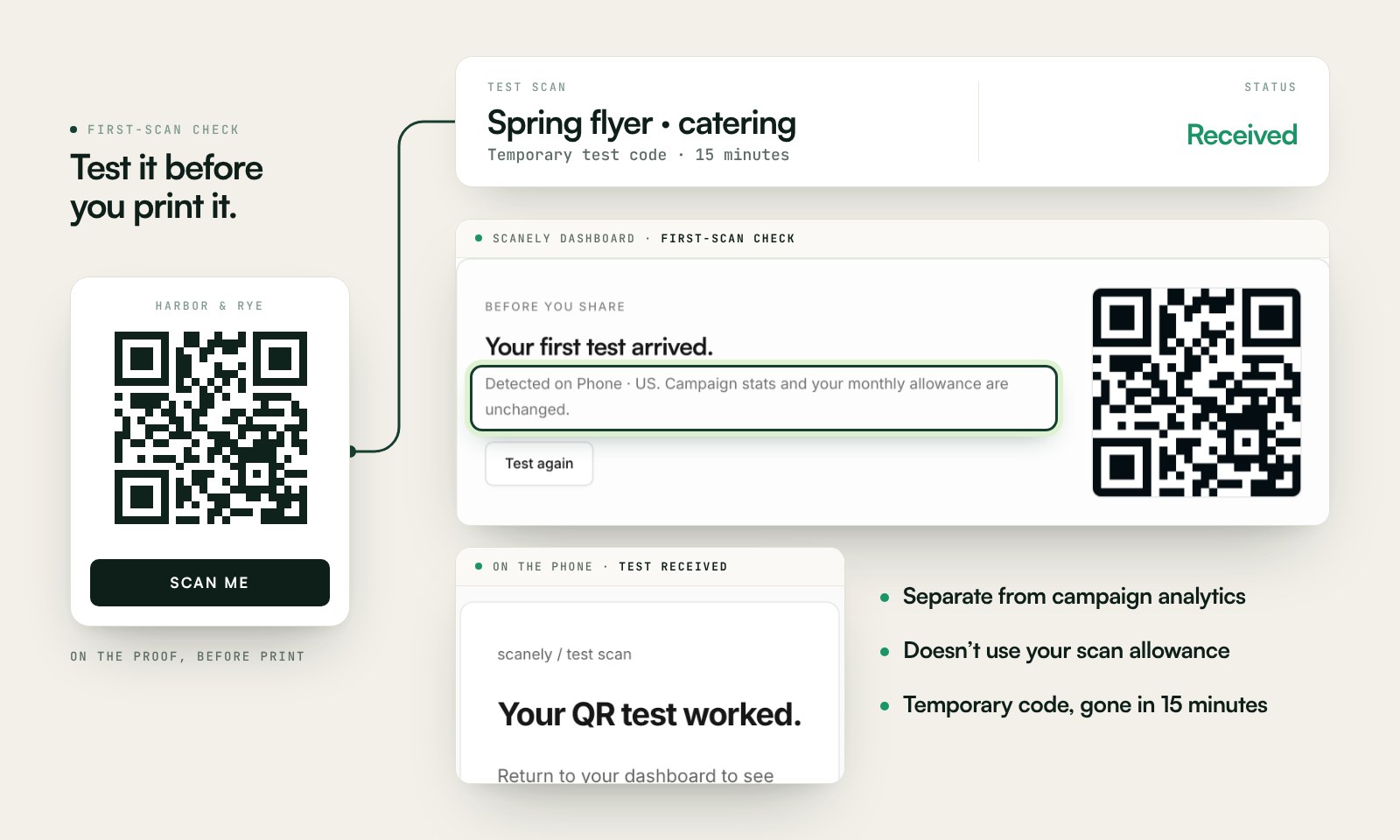
Scan a printed proof of your static download with a phone and check its destination. If you create a dynamic code in your Scanely account, First-scan check gives you a temporary test QR and confirms when your phone scans it.
The temporary code keeps test activity separate from campaign analytics. Never print it; download and test the final QR before ordering a batch.
Questions before you print
Is the connect card maker free?
Yes. Download the QR as PNG or SVG, the two-sided cards or inserts as a PDF and the giving sign as a PDF. No account, no watermark and no scan limit on a static code. Scanely does not print cards: you print the PDF at the office or at a print shop.
What link should the card open?
The form a visitor fills in: the Connect card page template from your Scanely account, a Planning Center (Church Center) form, a Google Form, a Breeze or Text In Church form, or a page on your own website. Any public https link works; admin links that only you can open are refused.
Where do the replies go?
To whatever the link opens. With the Scanely Connect card page, each reply lands in Leads in your dashboard and in the office email you set, with the visitor’s name, email, phone and message. Scanely is not a church management system: it hosts the page and passes the replies on.
Can the giving sign use Tithe.ly, Pushpay or Givelify?
Yes. Paste the public giving link from Tithe.ly, Pushpay, Givelify, Planning Center Giving, Vanco, Subsplash, EasyTithe, PayPal, Venmo, Cash App, Zeffy, Donorbox or your own site. Scanely is not a payment processor and takes no part of a gift: the code opens your giving page and the gift goes through your platform.
Which print formats are there?
Cards at 85 × 55 mm or 3.5 × 2 in, single or ten to an A4 or US Letter sheet (Avery 5371 compatible), and bulletin inserts at A5 or half Letter, two per page. The giving sign prints as a US Letter sign, a folded table stand, an A6 flyer, a 70 × 70 mm sticker or a card. Avery is a trademark of its owner.
What happens when we change our giving platform?
A static QR contains the link itself, so a sign printed with a Tithe.ly link keeps opening Tithe.ly. If you may switch, create a dynamic QR in your Scanely account first and print that one: its destination stays editable after printing and it counts scans. The Free plan includes three dynamic codes; Starter is $9 per month.
Is this only for churches?
No. A parish, a synagogue, a mosque, a sports club or a nonprofit uses the same card: every line on the card and on the page is editable, so "prayer request" can become "how can we help".