New in Scanely Pages: Templates, Leads and Analytics
Reuse saved page templates, organize enquiries with statuses and notes, and see which actions visitors take. Explore the latest Scanely Pages update.
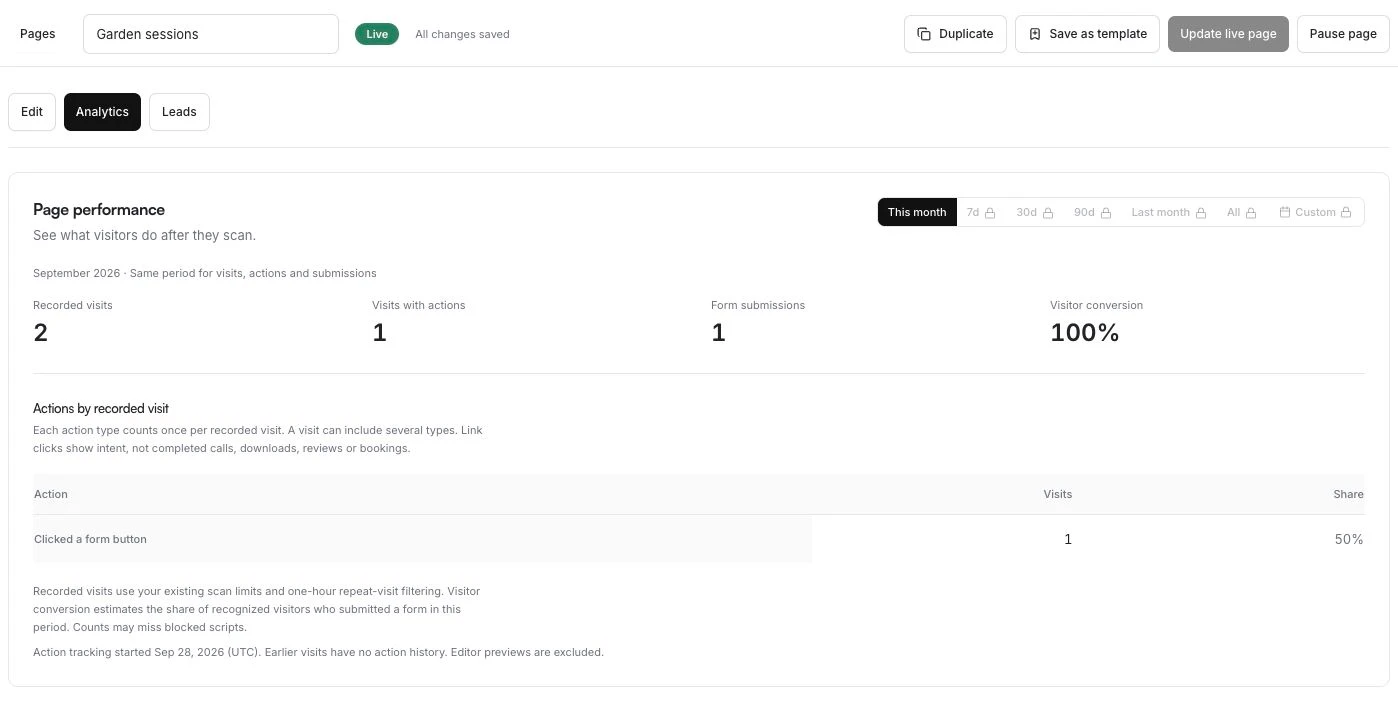
Page performance in a local demonstration workspace. Sample data, not customer results.
Scanely Pages now includes saved templates, lead statuses and internal notes, and a dedicated Page analytics view. They help with the work that comes after your first page: preparing the next event, following up on enquiries and checking whether visitors use the actions you added.
If you run a monthly workshop, you can reuse its layout, keep track of replies that need attention, and see how often a recorded visit includes a click on your form button. The same tools work for seasonal menus, service offers and contact pages.
Save a page you want to use again
Once you have a layout that works for your business, save the page's changes and select Save as template. Give it a recognizable name, such as "Monthly workshop". The saved template keeps a snapshot of the page's content, design, photos and files.
Next time, open Pages, select New page, then My templates. Preview your saved design and use it to create an independent, unpublished draft. Change the event date, venue, photograph and form wording before publishing.
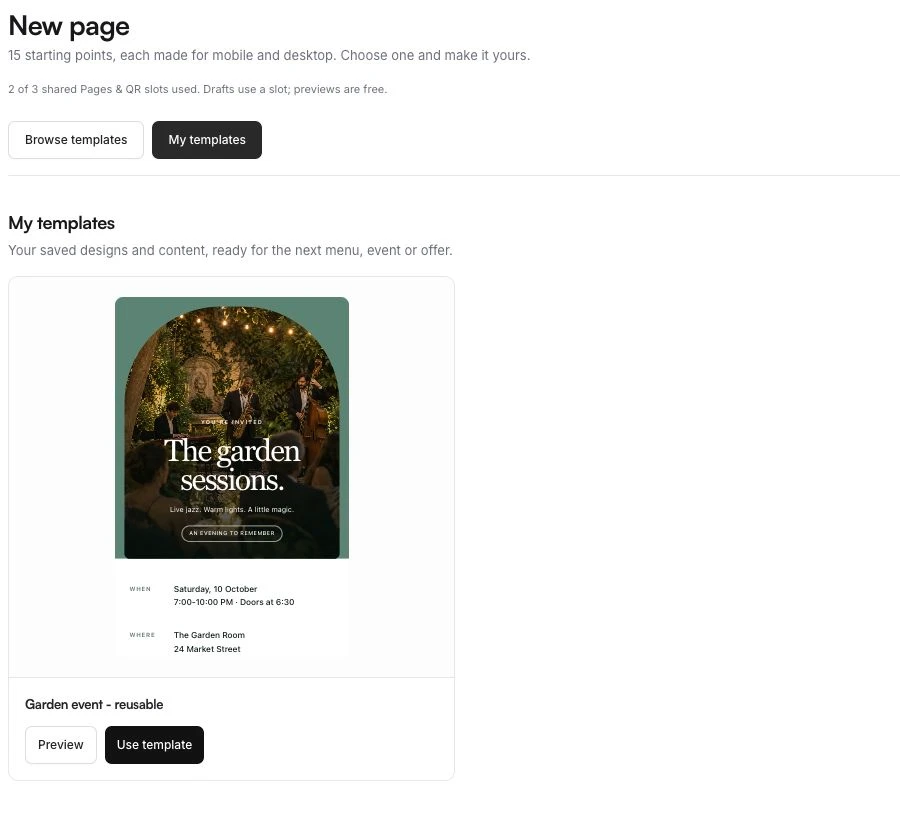
Editing the new page does not change the original or the saved template. Each new page gets its own link and QR code; previous visits and leads stay with the original page.
For a single follow-up event, Duplicate is still a quick option. Use a saved template when you want a named starting point to return to regularly. To correct the details of the same event without replacing its printed QR, edit the existing live page instead.
Templates belong to the selected workspace, so owners and editors can reuse the same starting points. You can save up to 50 templates per workspace without using a page slot. Creating a page from one uses a shared Pages and QR code slot and must fit the current plan's limits. The saved templates guide covers the full workflow.
Keep track of every follow-up
A list of submissions tells you who replied. It does not tell you which replies you have already handled. Open a Page's Leads tab, then open a submission to set its status and add an internal note.
- New: a reply you have not reviewed yet.
- In progress: a reply you are working on, such as an availability question.
- Closed: a reply you have finished handling.
These are simple labels for your workflow. For a workshop request, you might choose In progress, add "Sent the available dates; waiting for a reply", and select Save changes. Close it when you have handled the enquiry. The note stays inside the workspace and is never sent to the person who submitted the form.
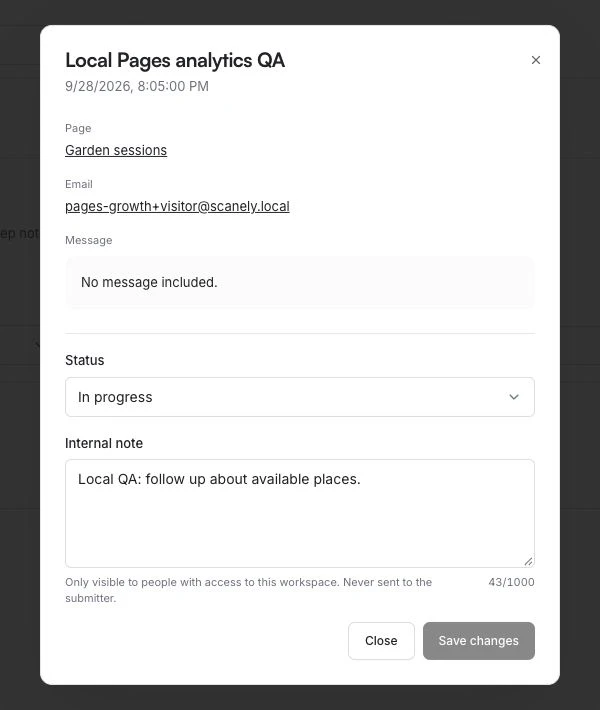
Filter by status to find the replies that still need attention. The main Leads screen also lets you filter by page and search names, email addresses or messages. Owners and editors can update leads; viewers can read them. Paid plans, including Lifetime, support CSV exports of all results or the filtered set, including statuses and notes.
You still contact people through your own email or phone workflow. Changing a status does not send a confirmation, reserve a seat or take a payment. Read the lead follow-up instructions for the available controls.
See what happens after someone opens your page
Open the Page's Analytics tab to find Page performance. Visits, actions and form submissions use the same selected period, making them easier to compare.
The action breakdown shows recorded visits that included a link click, call link, email link, directions, file link, review link or button leading to a form on the page. You do not need to install an extra tracking script on your hosted Scanely Page.
For example, visits with form-button clicks but few submissions might be a reason to review your form introduction or event details. It is a useful starting point for a check, not proof of why someone stopped.
Three distinctions matter when reading the numbers:
- Recorded visits use the existing scan limits and one-hour repeat-visit filtering. They are not a count of every browser refresh.
- Visits with actions counts visits with at least one tracked action. Each action type counts once per recorded visit, and one visit can include several types. Clicking a call or file link does not prove that a call connected or a download finished.
- Visitor conversion estimates the share of recognized visitors who submitted a form in the period. It is not form submissions divided by recorded visits, and recognized visitors are not an exact count of people.
Action history starts from the date shown in the panel. Earlier visits have no action history, editor previews are excluded, and blocked scripts can leave gaps. Free accounts can review the current month; paid plans add more date ranges. See the Page analytics guide for metric definitions, or the QR scan tracking guide for broader campaign measurement.
Try it for your next event
Start with a Page you have already adapted to your business, or follow the RSVP QR code guide to create one.
- Save the finished design as a template with a name you will recognize next month.
- Use it to create the next event's draft. Replace the date, venue, prices and any sample content, then check both mobile and desktop previews.
- Publish and share the new page's own QR or link. Keep the previous event's code with the previous event.
- Review replies in Leads, record the next step and update the status as you follow up.
- Open Analytics to check recorded visits, actions and submissions for the same period.
Saved templates, lead statuses, internal notes and current-month Page analytics are available on Free within its allowances. Free includes three shared Pages and QR code slots, two photos per page and ten form submissions per UTC calendar month. Paid plans expand the allowances and include CSV exports and additional analytics date ranges. Check the current plan limits before launching a larger event.
Explore Scanely Pages or open your Pages workspace to use the new tools with your next menu, event or offer.
FAQ
Will editing the original page change its saved template?
No. A template keeps the version you saved, and each page created from it is independent. Editing the original page leaves the template and other pages unchanged. Save another template if you want to reuse a revised design.
Does a lead status send an email to the visitor?
No. Statuses and notes are for your workspace. You handle follow-up separately. The existing new-lead notification setting emails the page owner when a form is submitted; it does not confirm attendance to the visitor.
Can I see actions from before this update?
No. The analytics panel shows when action tracking started. Earlier recorded visits do not have action history.
Can I try these features on Free?
Yes. You can save and reuse templates, manage lead statuses and notes, and view current-month Page analytics within Free's page, photo, scan and form-submission allowances. CSV exports and additional date ranges require a paid plan.