Social Media QR Code: One Code for All Your Profiles
Create one social media QR code for Instagram, TikTok and more. Build profile links with Scanely Pages, update them after printing and track page visits.
A social media QR code opens a profile or a page containing several profile links. To put Instagram, TikTok and LinkedIn behind one code, create a page with a button for each profile, then use that page's QR code on your printed materials.
With Scanely Pages, you can build and host that page without a separate website. Visitors scan, choose a platform and open the profile. You can change the page's links later while keeping the same printed QR.
This guide walks through a simple example for a creative studio: one introduction, one photo and three social buttons.
One profile or all your social media in one QR code?
Choose the destination before designing the code. A page of links is useful when visitors have a real choice to make. For a single action, a direct profile link takes fewer steps.
| What you want people to do | Where the QR should lead | Example wording beside it |
|---|---|---|
| Open one specific profile | That profile's URL | Scan to find us on Instagram |
| Choose between several social profiles | A Page with clearly labeled buttons | Scan to find your favorite channel |
| Contact you on WhatsApp | A WhatsApp chat link | Scan to chat with our team |
| Browse social profiles and find business details | A Page with social buttons and contact information | Scan for our links and contact details |
If Instagram is your only destination, use our Instagram QR code guide. For conversations, see how to create a WhatsApp QR code.
The remaining steps use one Page for several profiles. The code opens that Page; it does not open every social app at once or automatically follow any account.
1. Start with a simple Page
In your Scanely dashboard, open Pages, select New page, and choose the Simple page category. Preview Start with a story, then select Use template.
This creates an unpublished draft. Give it a recognizable internal name, such as “Studio social links”. The template includes a header, a photo and a text block. Replace its sample content with your own.
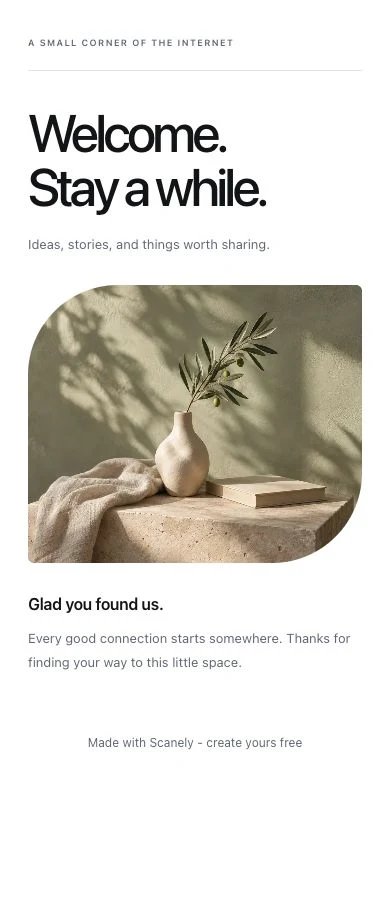
You can start on Free. It includes three slots shared by Pages and dynamic QR codes, three themes and two photos per Page. Drafts and duplicate pages also use slots, and starting photos count toward the photo allowance. Check the current Pages limits if you already have QR codes in your account.
2. Make the introduction recognizable
Someone scanning a parcel insert should recognize the same business they just bought from. Use your business name, a relevant photo and one sentence explaining what the page offers.
Here is sample copy for an imaginary creative business, Marlow Studio:
| Editor field | Example copy |
|---|---|
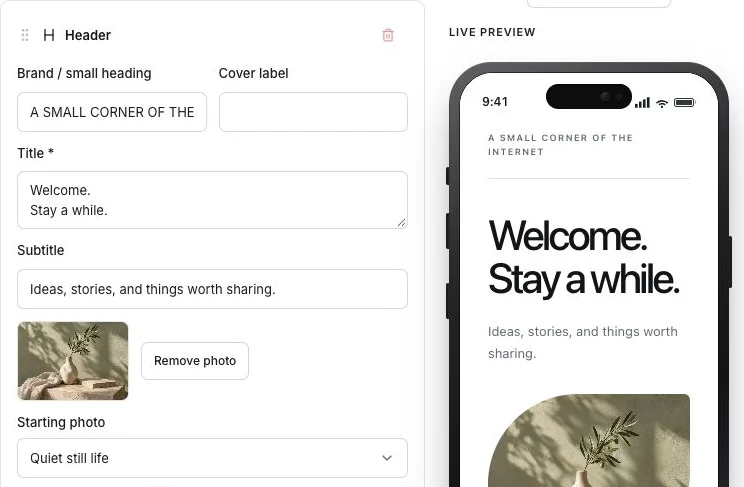
| Brand / small heading | Marlow Studio |
| Title | Find us online. |
| Subtitle | New pieces, studio notes and work in progress. Choose your favorite channel. |
| Text block | See our latest work on Instagram, watch the process on TikTok, or connect with us on LinkedIn. |
Replace the sample photo using Upload your own photo in the Header block. A photograph of your work or workspace can help visitors recognize you. Keep the introduction short enough that the links remain easy to find on a phone.
Use the design controls to choose a theme, accent, layout, typography, photo shape, spacing and button style. The Page design controls how the destination looks; the printed QR has its own design settings.
3. Add a button for each social profile
Under Add, select Buttons. The new block contains a sample “Learn more” button. Replace that example rather than leaving it on your page.
For each button:
- Set Label to the platform and, if useful, the reason to visit it.
- Keep Destination set to Web address, phone or email.
- Paste the complete profile link into URL, including
https://. - Choose Primary or Secondary styling.
- Select Add button for the next profile.
For the studio example, use:
- Instagram - latest work: the studio's Instagram profile link.
- TikTok - behind the scenes: the studio's TikTok profile link.
- LinkedIn - connect with us: the studio's LinkedIn page or professional profile link.
Copy the links from the actual profiles and open each one to verify the account. A handle alone, such as @yourstudio, is not a complete web address. Avoid links to a private dashboard, temporary sharing session or individual post unless that post is the intended destination.
A Buttons block supports three buttons. You can add another Buttons block for more profiles, but start with the channels you actively maintain. Put the most useful one first and move the Buttons block above longer text if needed.
4. Preview, publish and download the QR
Check the mobile preview and Desktop preview. On a narrow screen, use Edit and Preview to switch views. Read every label and confirm that the main choices are easy to find.
Use Save draft while preparing the page. Changes are not saved automatically.
When the content is ready:
- Choose Publish page to save it and make it public.
- Select Open page and check the result outside the editor.
- Open every social button and confirm the correct profile loads. Test on a phone and, where possible, in a browser where you are not signed in to that social network.
- Choose Download QR for a PNG to place in your artwork. Use QR design, analytics & leads for additional QR styling, SVG downloads and print tools.
The Page opens in a browser. A social platform may then open its app or ask the visitor to sign in; test that experience rather than assuming every phone behaves the same way.
Use Copy link when sharing digitally. In an email or message that someone is already reading on their phone, a clickable link is usually easier than asking them to scan a QR on the same screen.
5. Give the printed code a clear invitation
Match the wording to what visitors will see after scanning.
| Placement | Suggested call to action |
|---|---|
| Parcel insert | Like your new piece? Scan for more from our studio. |
| Shop counter | Find our latest work. Scan to choose a channel. |
| Business card | Let's stay in touch. Scan for our social profiles. |
| Event display | Meet the studio. Scan for our work and social links. |
Use a caption about Instagram only when Instagram is the main destination. A general page of profiles should have wording that makes the choice clear. Our QR call-to-action guide has more examples.
Keep strong contrast and preserve the empty margin around the QR. DENSO WAVE specifies a clear margin four modules wide on every side of a standard QR code. A module is one small square in the pattern.
Before ordering a batch, print one sample at the intended size and scan it under the lighting and from the distance visitors will use. Check the Page and every profile link again. The QR printing guide covers export and print preparation in more detail.
Update the links without reprinting
If your handle changes or you start using another platform, open the same Page, edit its button URL or label, and choose Update live page. The Page's link and printed QR stay the same.
Saving updates a live Page immediately; there is no separate unpublished revision. Public content can remain cached for up to a minute, so allow a short time and reload if the previous version is still visible.
Use Duplicate when you need a separate version for another campaign or placement. Save your work first: duplication copies the last saved version into a new draft, with its own link and QR. It uses another slot and starts without the original's scan or lead history. Follow the duplication guide for the details.
For example, separate codes for a counter sign and parcel inserts let you compare recorded visits for each placement. Reusing one code in both places combines their activity. To change the profiles behind an already printed code, edit the original Page rather than making a copy.
What can you measure?
Open QR design, analytics & leads to review recorded visits to the Page's short link. Depending on your plan, you can inspect activity over time and breakdowns such as approximate location, device, operating system and browser.
These measurements help answer questions such as “When was this link used?” and “Are visitors mostly on phones?” Keep the boundaries clear:
- A direct click on the Page link can count too. The “scans” figure does not reliably separate camera scans from clicks.
- Locations are approximate network-based information, not precise positions. Repeat visits may be deduplicated; recorded scans are not a one-to-one count of people or camera actions.
- Pages does not currently report clicks on individual social buttons.
- A Page visit does not prove that someone followed you, sent a message or bought something. Check those outcomes in the relevant platform's own analytics, where available.
Compare visits over consistent periods and keep a note of when and where you shared each code. Avoid treating a rise in followers during the same week as proof that the printed campaign caused it. The Scanely analytics guide explains tracking and plan limits.
FAQ
Can I create one QR code for all my social media accounts?
Yes. Link the QR to a Page containing buttons for your profiles. Visitors open the Page and choose a platform. In Scanely, each Buttons block supports three links, and you can add more than one Buttons block.
Do I need a website to make a social media QR code?
No. Scanely Pages hosts the destination for you. If you only want to link one profile, you can create a QR for that profile's URL without building a Page.
Can I create a social media Page for free?
Yes, within the Free plan's allowance of three slots shared by Pages and dynamic QR codes. Free includes three themes, two photos per Page and a Scanely footer. Drafts and copies also use slots; see the current limits.
Can I change the profiles after printing the QR?
Yes. Edit the buttons on the original Page and select Update live page. Its link and QR stay the same. A duplicate Page has a different link and QR, so it will not update a code you already printed.
Does scanning the code automatically follow my account?
No. Scanning opens the Page or profile. The visitor still chooses whether to follow, and the social platform may require sign-in. Scanely does not measure those follows or clicks on the Page's individual social buttons.
Build your social links page
Start with one recognizable introduction and the profiles that matter to your visitors. Publish the Page, check every button and test a printed sample before sharing it widely.
Create your social links Page, or explore Scanely Pages and the full Pages guide first.