Introducing Scanely Pages: a page behind every QR code
Build a menu, offer, event or business page inside Scanely. Start with 15 editable templates, collect enquiries and keep the same QR code when your content changes.
A QR code is only the first step. Someone scans the card on your counter, the poster in your window or the insert in their parcel. What should they see next?
Until now, you needed a destination ready: a website, a hosted menu, an event page or a separate form. Scanely Pages lets you build that destination inside Scanely. Choose a template, add your content and publish a page with its own link and QR code. Scanely hosts it for you.
Pages is available now, including on the Free plan. Here is what you can make with it.
Fifteen starting points for the things people scan
The template library covers six everyday uses. Each template includes a layout, sample content and a starting design that you can change.
- Restaurant menus: three designs for a neighbourhood bistro, a supper club or a morning café. Add sections, dishes, descriptions, prices and photos. Mark an item as sold out when it is unavailable.
- Offers: three designs for a promotion, a product collection or an introduction to your service. Give the offer a clear next step, such as an enquiry or a link to your shop.
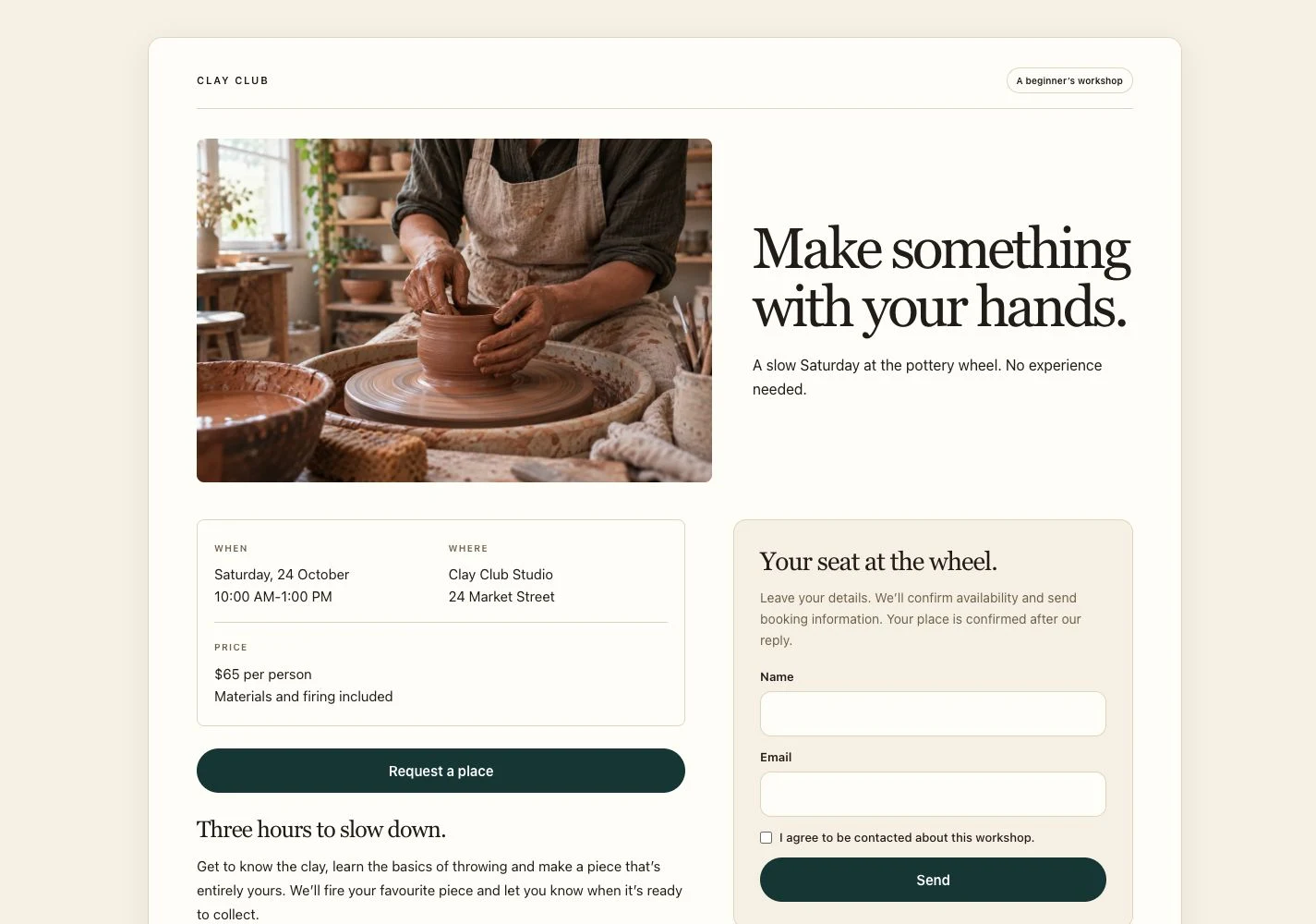
- Events and RSVPs: three designs for a garden event, a workshop or a personal invitation. Put the date, venue and practical details together with a response form.
- Business pages: three designs for a local business, an independent professional or a creative portfolio. Help visitors find your contact details, opening hours and directions.
- Reviews and feedback: two designs that give customers a public review link and a way to send private feedback. Add your own review destination before sharing.
- Simple page: one flexible starting point for an announcement, a short introduction or a story of your own.
All 15 starting templates are available on every plan. Explore the library to preview them before creating a draft.
Make the design yours
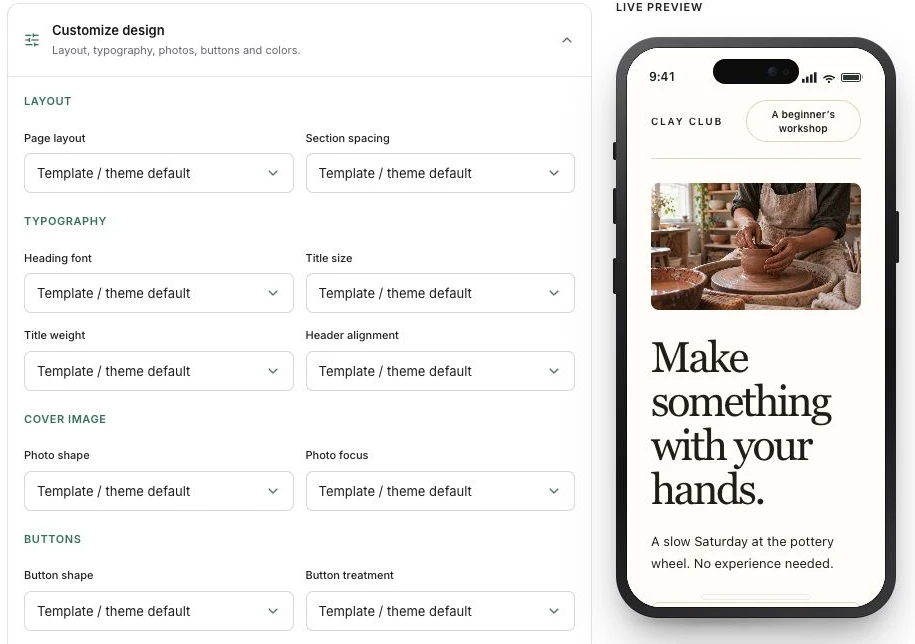
The template is a starting point. In the editor, you can change the content and the way the page looks: theme, layout, typography, photo shape, spacing and button style. Add your own photos and rearrange the blocks to put the most useful information first.
For a café, that might mean putting breakfast dishes above the opening hours. For a workshop, it might mean leading with a large photo, then the programme, venue and enquiry form. A business page can keep its contact actions near the top.
Free includes three themes and preset accent colors. Paid plans, including Lifetime, add all eight themes, custom colors and more photos per page. The Pages guide explains the allowances.
Templates contain sample business details, prices, dates and links. Replace those with your own and check the preview before publishing.
Made for phones and larger screens
Most people scanning a printed QR will arrive on a phone. Someone opening the same link from an email or a message may be using a laptop. Pages adapts to both, and you can preview the mobile and desktop layouts before sharing.
Change the page. Keep the printed QR.
Your published page has a stable Scanely link and QR code. When a dish changes, an event gets a new venue or a seasonal offer needs new copy, open the page, make your edits and choose Update live page.
The link stays the same. So does the QR on your menus, posters and packaging.
You can copy the page link for messages and social profiles, or download the QR for printed materials. The QR detail screen also gives you design options, analytics and print tools. Test a sample at its final printed size before making a full print run.
If you need to take a page offline temporarily, use Pause page. Your content stays saved, and Make live opens it to visitors again.
Bring enquiries into one inbox
Add a form to collect enquiries, RSVP replies or private feedback. It collects a name and email, with optional phone and message fields. You can edit the form heading, field labels, consent text and success message to fit the page.
Responses appear in your Leads dashboard, with the page they came from. New-lead email notifications can alert the page owner, and paid plans include CSV export when you need to work with the responses elsewhere.
A submission gives you a way to follow up. You still handle booking confirmations, ticket availability, replies and payments with the customer. A public review button opens the review service you link to; private feedback stays in your Scanely inbox.
Publish your first page
- Open Pages in your dashboard and choose New page.
- Preview a template, then select Use template to create a draft.
- Add your own details, photos and links. Adjust the design and check both screen sizes.
- Choose Publish page, then open the public page to check it.
- Copy its link or download the QR and share it where your customers will see it.
Drafts stay unpublished until you choose to publish. Once a page is live, saving changes updates that live page. For a larger revision, you can pause it while you work.
Start with the Free plan
Free includes 3 shared Pages and QR code slots, 2 photos per page and 10 form submissions per calendar month across your pages. A draft uses a slot too. For example, two existing QR codes leave room for one Page on Free. Free pages display a Scanely footer.
Paid plans increase your allowances and include more themes, custom colors, up to eight photos per page, file blocks, lead CSV export and removal of the Scanely footer. See the current Pages limits or compare plans.
Create your first Page, or follow the step-by-step Pages guide as you build it.