QR Code Reader Apps: What to Use and When You Need One
Most phones scan QR codes natively - a QR code reader app only matters on Android 8 or older, iOS 10 or older, or for scan history and batch scanning.
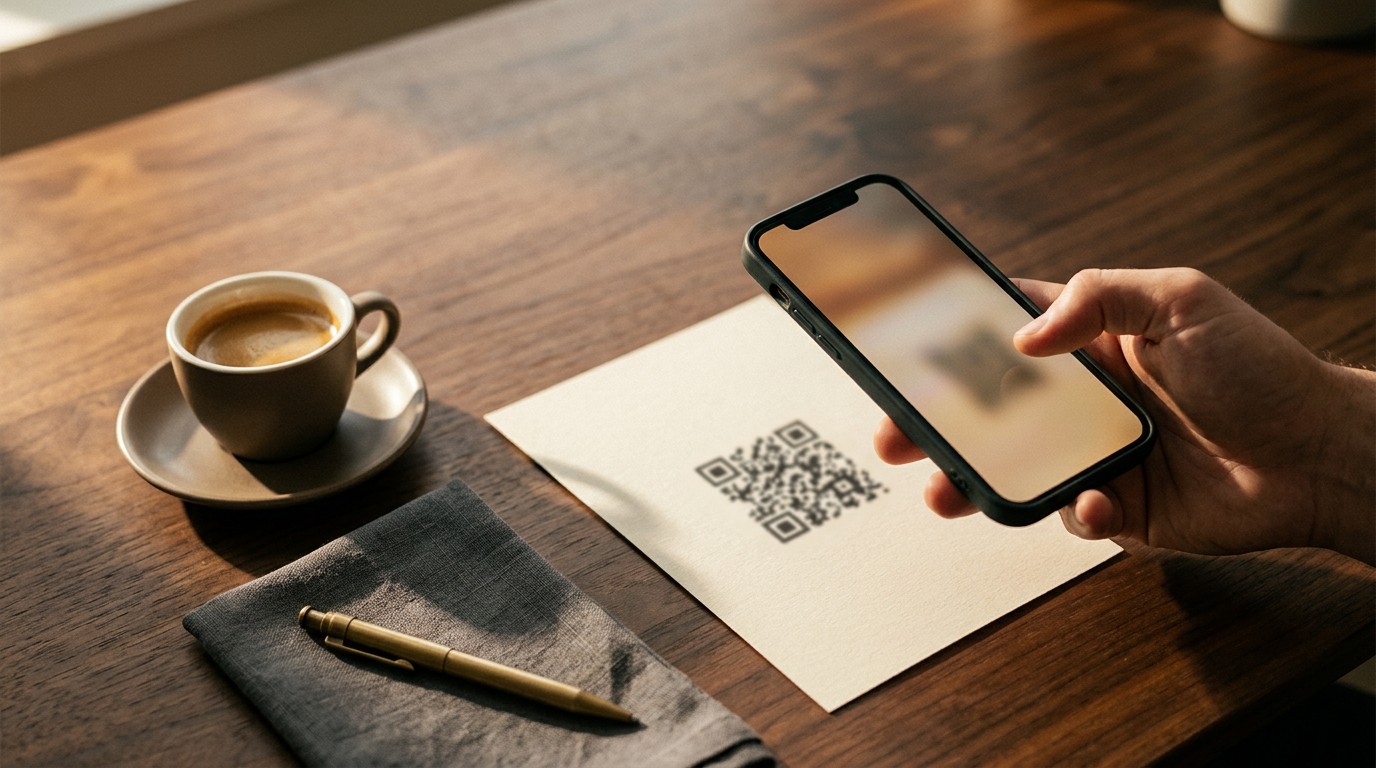
Do You Still Need a QR Code Reader App?
A QR code reader app is a downloadable scanner that decodes QR codes with your phone's camera. Most people no longer need one. Every iPhone since iOS 11, released in 2017, scans QR codes directly from the built-in Camera app. Most Android phones running Android 9 or newer do the same, and Google Lens covers nearly everything else.
You still need a dedicated app in a few specific cases:
- Your phone runs Android 8 or older or iOS 10 or older - roughly pre-2018 hardware
- You want scan history with CSV export for audits or campaigns
- You need batch scanning for inventory counts or event check-in
- You scan retail barcodes like EAN, UPC, or Code 128 that some native cameras ignore
For everyone else, the camera already installed on the phone is faster, safer, and asks for zero extra permissions. That fact matters even more if you print QR codes for customers - your codes must work with native cameras first.
How to Scan a QR Code Without an App
Point your phone's camera at the code, hold steady for a second, and tap the banner that appears. That is the entire process on any phone made after 2018. No download, no account, no extra permissions.
Two details matter before you tap. First, both iOS and Android show a URL preview so you can read the destination before anything opens - autolaunch is disabled by default as a phishing safeguard. Second, decoding works offline: a Wi-Fi or vCard code stores its data inside the code itself, so it works with zero signal. A URL code also decodes offline, but you need a connection to actually load the page.
iPhone: Camera App and Control Center Scanner
- Open the Camera app (any iPhone on iOS 11 or later, so 2017 onward).
- Frame the QR code in the viewfinder - no need to press the shutter.
- Tap the yellow banner at the top. It shows the domain, such as "scanely.com", before opening Safari.
iPhones also include a dedicated Code Scanner. Swipe into Control Center, tap the QR icon, and scan. This version opens links in an in-app browser instead of Safari and adds a flashlight button for dim rooms - useful for scanning a menu code in a low-lit restaurant.
Android: Camera, Google Lens, and Quick Settings
On Android 9 or newer, the stock camera detects QR codes the same way: point, wait, tap the link chip. On Android 13 and later, there is also a QR code scanner tile in Quick Settings - swipe down twice and tap it.
Running Android 8 or older? The camera likely will not detect codes. Install Google Lens (free, made by Google) instead of a third-party scanner - it scans QR codes from the live camera or from any saved image, with none of the permission risks covered later in this article.
When a Dedicated Reader App Actually Makes Sense
Skip the app store search results entirely. The decision comes down to five specific needs, and if none apply to you, the native camera wins on speed, privacy, and permissions.
A dedicated reader app earns its install when you need:
- Scan history with CSV export. Field teams verifying 200 printed table tents or event posters need a timestamped log, not a memory test. Native cameras keep no record of what you scanned.
- Batch scanning. Inventory counts and event check-in lines move faster when the app scans continuously - 30-40 codes per minute versus stopping to tap a banner after each one.
- Retail barcode formats. Many native cameras read QR codes only. If you scan EAN, UPC, Code 128, or Data Matrix labels, you need an app built for 1D and 2D barcodes.
- A hardware flashlight toggle. Dedicated apps keep the light one tap away for warehouse shelves and dim venues. On iPhone, the Control Center scanner covers this; most Android cameras do not.
- A pre-2018 phone. Android 8 or iOS 10 and older simply lack native detection.
Features Native Cameras Don't Have
| Feature | Native camera | Dedicated app | Web-based scanner |
|---|---|---|---|
| Scan history | No | Yes | Rarely |
| CSV export | No | Yes | No |
| Batch mode | No | Yes | No |
| EAN, UPC, Code 128, Data Matrix | Limited | Yes | Some |
| Decodes all payload types offline | Yes | Yes | No - needs a loaded page |
| Extra permissions required | None | Camera, sometimes photos | Camera via browser |
For a business printing codes, the takeaway is the left column: design for the native camera, because that is what customers use.
Scanner App Red Flags: Permissions, Subscriptions, and Quishing
The QR scanner category on both app stores is crowded with apps built to harvest data or trap users into subscriptions, not to scan codes. Three warning signs identify most of them.
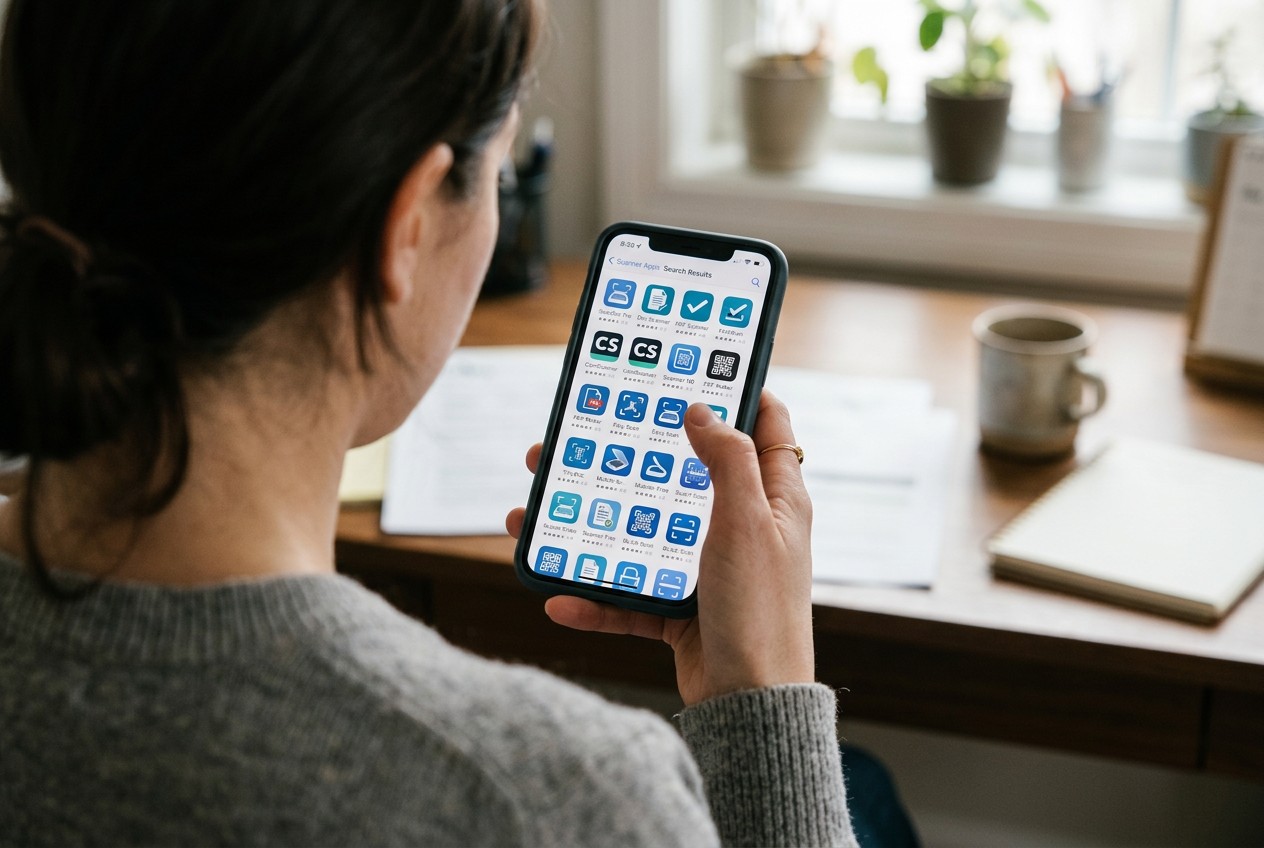
Subscription traps. A common pattern: the app offers a "free 3-day trial" the moment you open it, then converts to $7.99 or even $9.99 per week - over $400 a year for functionality your camera already includes. The FTC has flagged this dark pattern repeatedly, and QR scanner apps are among the worst offenders. If a scanner asks for payment details before scanning anything, delete it.
Permission grabs. Decoding a QR code requires exactly one thing: camera access. Apps that demand contacts, call logs, or precise location are collecting data unrelated to scanning. Several widely downloaded scanners disclose in their own Play Store Data Safety sections that they share location and device IDs with third parties for advertising.
Quishing risk. Quishing - QR phishing - is the reason the URL preview exists. A malicious code printed on a fake parking meter sticker or taped over a real restaurant code sends scanners to a credential-stealing page. Your native camera shows the destination domain before opening it; some third-party apps skip that preview and autolaunch links. This is also why short redirect domains like "qr-io.co" make cautious users hesitate, even on legitimate codes.
Permissions a QR Scanner Actually Needs
- Camera - required, nothing scans without it
- Photo library - only if you scan codes from saved images or screenshots
- Nothing else - contacts, location, microphone, and call logs have no role in decoding a code
Check before installing: on iOS, scroll to the App Privacy label on the App Store listing. On Android, open the Data Safety section on Google Play and look for "Data shared with third parties." Thirty seconds of reading filters out most bad actors.
Scanning on Desktop and From Screenshots
Web-based QR scanners fill the gap on computers without a rear camera pointed at the world. On Windows 11, Mac, or a Chromebook, save the code as an image and use a browser-based QR decoder to inspect its destination without installing an app. This is the fastest way to check a code in a PDF proof or screenshot your designer just sent.
Scanning a code displayed on your own phone is the trickiest case, because you cannot point a camera at its own screen. Two fixes: take a screenshot and scan the image, or pull out a second device and scan the screen directly. Screens scan fine as long as brightness is up and glare is low.
In dim rooms, turn on the flashlight. The iPhone Control Center scanner has a built-in light toggle; on Android, enable the flash in the camera app before framing the code. A code on matte paper in low light usually needs it.
Scan a QR Code From an Image or Screenshot
- iPhone: open the screenshot in Photos, long-press the QR code, and tap the link that pops up. iOS 15 or later handles this natively.
- Android: open the image in Google Photos or Google Lens, and Lens detects the code automatically.
- Desktop: upload the screenshot to the free online QR scanner - no webcam or app required.
This matters when someone emails you a flyer and the code is trapped inside the attachment.
What This Means If You Print QR Codes for Customers
Your customers scan with whatever camera app shipped on their phone. They will not download a reader app to see your menu, and they will not troubleshoot a code that fails on the first try - roughly half of users give up after one failed scan attempt. So the design target is the weakest common scanner: a three-year-old budget Android phone with a mediocre camera, held by someone standing in imperfect light.
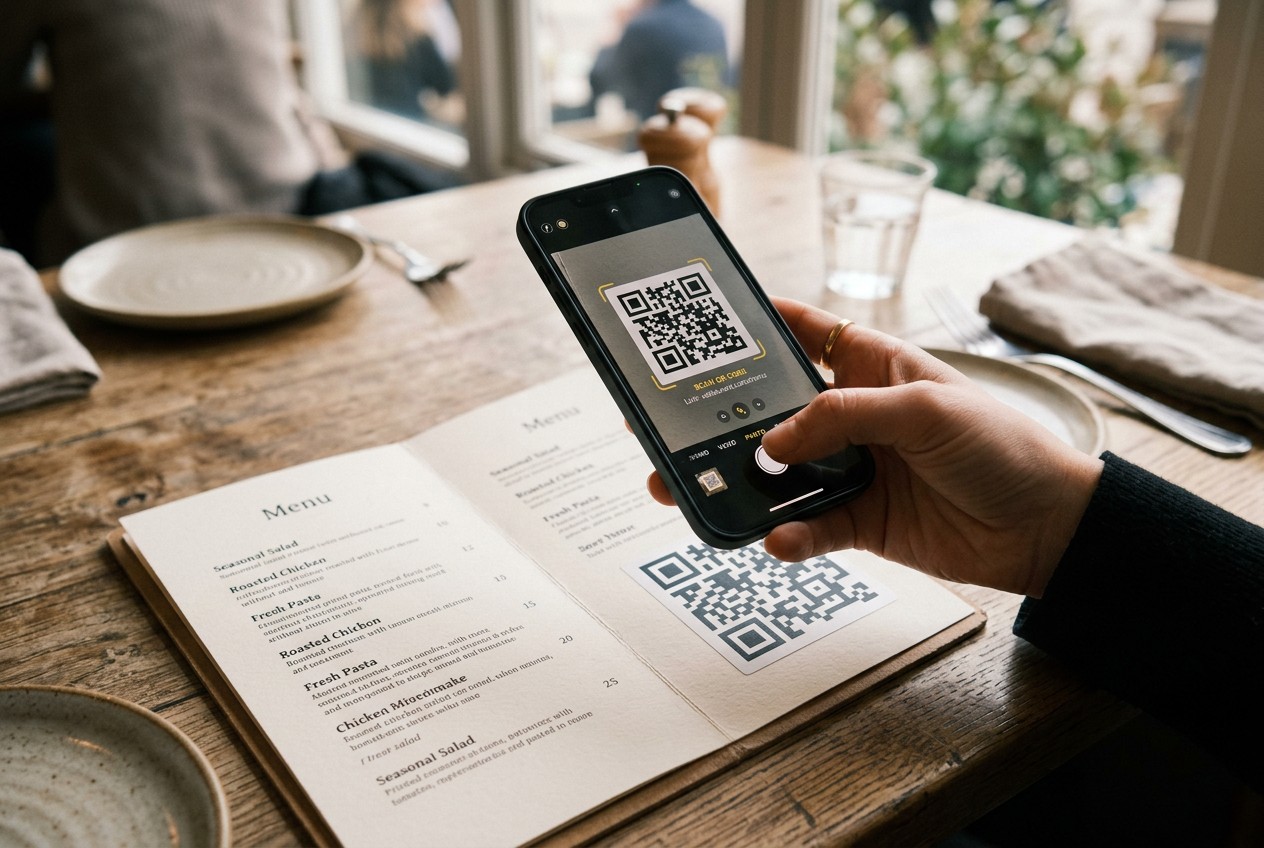
That target is very reachable if you get size and contrast right, and it fails fast if you do not. A code that scans fine from your flagship iPhone at your desk can fail on a $150 Android phone reading a laminated menu under warm restaurant lighting. The fix belongs in the design file, not in the customer's hands.
The stakes vary by context. A restaurant menu code gets scanned from 8-12 inches away at a table. Retail signage might be read from 3-6 feet across an aisle. Event banners can sit 10 feet or more from the audience. Each distance demands a different printed size, which is why guessing is expensive after the print run ships.
Test Your Code on Every Scanner Before Printing
Run the printed proof - not the screen version - through this checklist:
- Scan with an iPhone Camera app and an Android stock camera.
- Scan with Google Lens to cover older Android devices.
- Upload a photo of the proof to a web-based scanner as a fourth check.
- Test at the real usage distance and in low light.
- Confirm the URL preview shows a domain a stranger would trust.
Five minutes of testing beats reprinting 500 table tents.
Size, Contrast, and Placement Rules That Prevent Failed Scans
Use the 10:1 rule: printed code width should be at least one-tenth of the scan distance. A code scanned from 20 inches needs to be 2 inches wide; a banner read from 10 feet needs a 12-inch code. The QR size calculator does this math for any distance.
Beyond size, three rules cover most failures:
- Dark code on a light background. Inverted or low-contrast color schemes cut scan reliability sharply.
- Keep the quiet zone. Leave a clear margin around the code equal to at least 4 modules - do not crowd it with text or borders.
- Avoid glossy laminate. Glare from overhead lights blinds cheap camera sensors; matte finishes scan better.
When a code fails in the field, the cause is almost always one of these design choices, not the customer's phone.
Reader Apps Don't Track Scans - Dynamic QR Codes Do
Every QR code reader does the same thing: it decodes the pattern into a URL and hands it to the browser. That is where the reader's job ends. The scanner app records nothing for the code's owner - no count, no location, no device data. If your restaurant code got 340 scans last month, the phone that scanned it is not what told you that.
Tracking lives on the other side, in how the code was generated. A static QR code encodes your final URL directly. It works forever, costs nothing, and reports nothing - and if the link changes, you reprint. A dynamic QR code encodes a short redirect URL instead. When someone scans it, their phone hits the redirect server first, which logs the scan - count, device type, rough city-level location, and timestamp - then forwards the visitor to your destination in a few hundred milliseconds. The customer never notices the hop.
That redirect layer is also what makes dynamic codes editable. Point the same printed code at a new menu, a seasonal landing page, or a corrected URL without reprinting a single flyer.
The choice happens at creation, not at scan time. A dynamic QR generator builds the redirect and analytics in from the start; a basic static generator cannot add them later. Decide before you print, because a static code on 500 table tents stays static.
FAQ: QR Code Reader Apps
Is there a free QR code reader with no ads? Yes - your phone's camera app, and Google Lens on Android. Both are free, ad-free, and preinstalled.
Why won't my phone scan a QR code? Usually the code is too small, low contrast, or glare is blocking it - or the phone predates 2018. Try Google Lens, more light, or more distance.
Can a QR code hack my phone just by scanning? No. Scanning only decodes text. The risk is the link it opens, so read the URL preview before tapping.
Do QR scanners work offline? Yes. Wi-Fi and vCard codes decode fully offline; URL codes decode but need a connection to load the page.
How do I scan a code on my own phone screen? Screenshot it, then long-press the image in Photos or open it in Google Lens.
What's the best scanner for EAN and UPC barcodes? A dedicated app - most native cameras skip 1D retail formats.
Security note: Always check the URL preview before opening a scanned link, and never enter passwords or payment details on a page reached via a QR code unless you are certain the code and destination are legitimate.