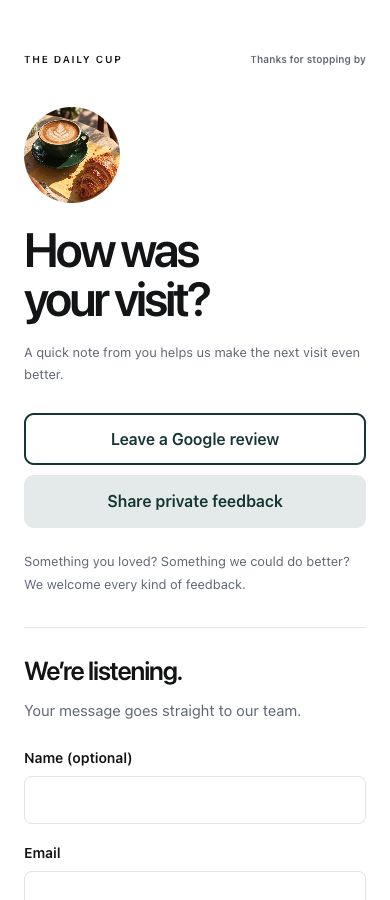
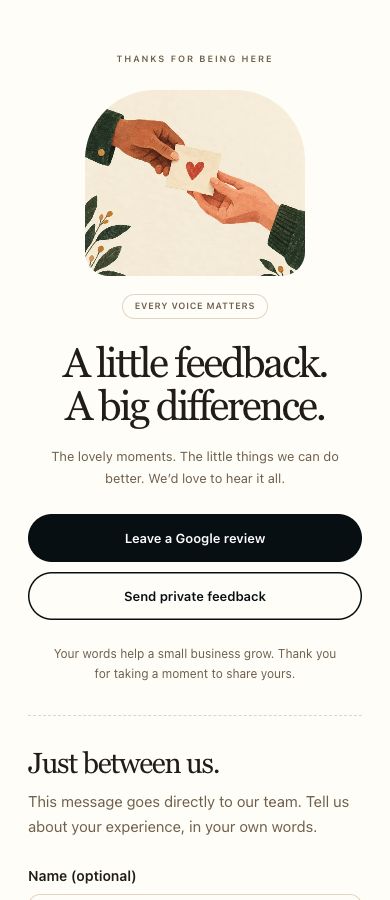
Put your Google review link behind a QR code, or create a Page with public reviews and private feedback. Share it on a card, a sign or your own NFC tag.
Free Pages include 3 shared Pages and QR code slots, 10 form submissions per calendar month across your account, and a Scanely footer. Each additional placement code uses a slot. See all Page allowances.
A welcome for every experience.
Ask everyone the same open question: “How was your visit?” Let visitors choose a public review or a private message, whatever their experience.
Offer both choices together
Keep the Google review action alongside private feedback. Do not ask for a rating first or send only satisfied customers to Google.
Make the destination yours
Replace the sample business name, photo and copy. Add the review link for the correct location, then test the published Page on a phone. Google handles sign-in and the public review.
A handout after a visit. A sign at the counter. A stand on the table. Use a simple invitation and give people room to decide.
Print a card, sign or table stand
The existing print tools turn your link into a PDF with your business name. Choose a layout and paper size, keep the clear border around the QR, and scan a printed proof before making a batch.
Card
Hand it out with a receipt or after an appointment.
Sign
Place a clear invitation at a counter or reception desk.
Table stand
Keep the QR upright and easy to scan at close range.
Free tool downloads use static QR codes. For a tracked code, use its Print kit in your Scanely dashboard.
Add a tap option with your own NFC tag
Write your Google review link or Scanely Page URL to a compatible, writable NFC card or tag using an NFC writing app. Scanely supplies the link; you source and program the hardware.
Test the finished tag on the phones your visitors use. Keep a printed QR beside it as another way to open the page.
Use separate tracked URLs for each placement or channel. A shared destination keeps the experience consistent; different links keep the recorded visits separate.
One reviews Page, two entry points
For example, use one tracked Page link in the printed counter QR and an additional placement link on the NFC card. Both open the same published Page.
Counter QR
The link encoded in the printed QR
Counter NFC
A separate link written to the NFC tag
If QR and NFC use the same URL, Scanely cannot distinguish the two channels. Forwarded links still count under the link used.