NFC Google Review Card: What to Buy and Measure
Choose an NFC Google review card and use Scanely to keep its destination editable, offer public reviews and private feedback, and compare link visits.
What an NFC Google review card opens
An NFC Google review card is an NFC tag storing a URL that a compatible phone can open. It can lead directly to Google or to a Scanely link or published Page. With Scanely, you can edit the destination or Page while keeping the same stored URL and card. NFC guide
A Scanely Reviews Page gives public Google reviews and private feedback separate, visible actions. You can update the invitation, business details or Google review button later without replacing the card. Choose the customer experience first, then buy hardware that supports its URL. For iPhone and Android, check the phone behavior below. Reporting measures eligible link visits and Page actions, not posted Google reviews.
Choose a direct Google link, dynamic URL or Reviews Page
Choose a direct Google URL for a fixed destination, a dynamic Scanely URL for an editable redirect, or a Reviews Page for public reviews and private feedback together.
| Option | Opens | Later changes | Measurement | Suitable task |
|---|---|---|---|---|
| Direct Google review URL | Rewrite the URL on a writable tag | No Scanely visit tracking | One fixed review destination | |
| Dynamic Scanely URL | Google through a Scanely redirect | Edit the destination; keep the stored URL | Recorded link openings | One editable destination |
| Published Scanely Reviews Page | Your hosted Page | Edit content or review button, then publish | Visits, action clicks and private submissions | Public reviews alongside private feedback |
These options follow Scanely’s NFC guide and review workflow.
What changes after the card is written
A dynamic QR code keeps its Scanely URL while the destination changes. Page edits also preserve the stored URL. Both remain dependent on Scanely’s URL and service: keep codes active and Pages published.
Choose the simplest route for your business
For our editorial cafe example, choose a Reviews Page with both choices visible to everyone. If opening one Google destination is the only task, create an editable review link. Free URL redirects show a brief Scanely screen; Free Pages show a footer instead. Plan details
Google provides a review link and QR option. Scanely’s free printable review QR needs no account, but its destination is fixed and it has no Scanely visit tracking.
Set up one cafe Reviews Page with QR and NFC entry points
For a cafe counter, I recommend one Scanely reviews Page with two entry points: a printed QR and an NFC card. The same Page keeps the invitation consistent while separate links let you compare recorded activity. Here is an illustrative setup.
Replace the sample content and publish both choices
- Start with the reviews Page template. Replace the sample business name, photo and copy with your cafe’s details.
- Add the Google review URL for the correct location. Use our Google review link guide to find and check it. The public review button stays hidden until you supply its destination.
- Enable the private feedback form. It requires email and consent; edit the introduction to explain how you will use submissions. Responses go to Scanely Leads, not to Google as public reviews. Follow the Page configuration guide for form settings.
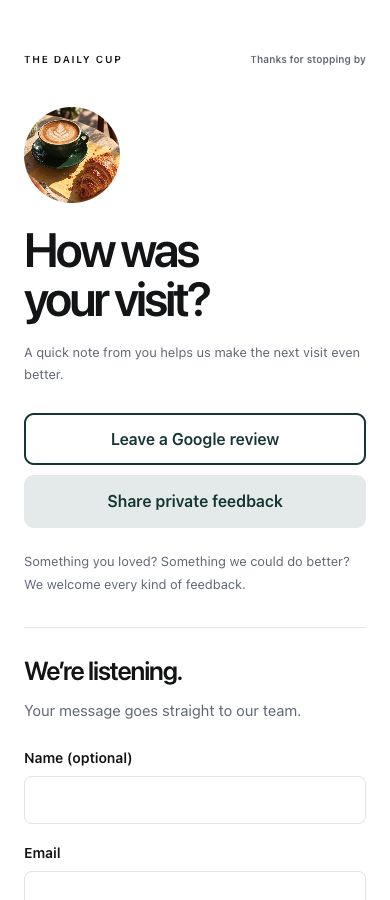
Keep the invitation open to every customer
Use the neutral invitation “How was your visit?” Show the Google review button and private feedback option side by side to everyone. Do not add a rating screen or satisfaction filter, offer incentives, or invite only satisfied customers. Google’s review policy prohibits incentives in exchange for posting, changing or removing reviews, and selective solicitation of positive reviews.
Keep participation voluntary: do not pressure customers at the counter or ask for a particular rating or review content.
Google handles sign-in and public reviews. Customers must sign into a Google Account to leave one. Google’s review guidance
Create Counter QR and Counter NFC, then test both
- Publish the Page. Use its original code for the printed counter QR; Page Analytics labels this Original QR code. Add a placement named Counter NFC. Both open the same Page, but each has its own short link and scan history. Placement setup
- Copy Counter NFC’s public short URL, not a dashboard or preview address. Follow the NFC guide to write it through a separate compatible app or supplier process.
- Test the finished card on actual iPhone and Android devices in its intended holder. Open the Page and check its Google button. Test the printed QR separately.
- Publish a Page edit and check both links again. Both placements should show the updated version without replacing their stored URLs.
Your NFC card buying checklist
Before buying a batch, verify the tag and the customer’s phone journey. A card sold for Google reviews is not necessarily rewritable.
- Ask the supplier: Confirm chip type, standard NDEF URL record support, enough memory for your URL, writable status and whether cards arrive locked.
- Check a sample: Read its existing URL and test whether it can be rewritten. Seller cards may be read-only, password-protected or tied to a service.
- Lock only after verification: Complete the phone and QR checks above first. Making a tag read-only can be irreversible. Scanely NFC guide
iPhone: iPhone XS and later support background tag reading. Customers tap the notification and unlock when prompted. Background reading is unavailable in situations including Camera use, Apple Pay Wallet use and Airplane mode. Apple’s reading guidance
Android: Devices generally look for tags while unlocked unless NFC is disabled. Android NFC documentation Behavior varies by model and operating system; keep the printed QR as another entry point.
Measure link openings and Page actions within your allowances
Scanely reporting measures eligible link openings, Page actions and private submissions. It does not count physical NFC taps or completed Google reviews.
Separate visits, review-button clicks and private submissions
Detecting a tag, displaying a notification or reading it in a writing app does not itself record a visit. Opening the Scanely URL can record an eligible visit, including through a direct click. NFC reporting guide
A Google review-button click records selection of that link, not a submitted or published review. Private form submissions are feedback stored in Leads. Scanely does not fetch public Google reviews; check those separately in your Google Business Profile. Review reporting
Compare placement links without claiming physical tap counts
For the editorial cafe example, filter Page Analytics by Original QR code and Counter NFC to compare recorded visits, actions and submissions. Repeated openings of the same code from the same hashed IP within one hour are grouped. Analytics rules
Using one URL for both entry points combines their activity. Separate placement links preserve separate reporting, but attribution follows the link: a forwarded Counter NFC link still belongs to that placement, without verifying physical location. Placement reporting
Account for Free slots, scans and form submissions
Free includes three shared Pages and dynamic QR slots, 1,000 tracked scans per calendar month, and 10 form submissions per calendar month across the account. Additional placement codes consume shared slots; recorded NFC-link visits use the scan allowance. Account allowances
At the monthly scan allowance, recording stops while normal access continues, unless explicitly paused, expired or capped per code. The separate form limit pauses new submissions until the next calendar month or an upgrade. Visitors see a paused notice, but the rest of the Page and existing Leads remain available. Page limits
Can I change the destination after locking the card?
Yes, if the card stores a Scanely short URL you control. Hardware locking makes that stored URL read-only; it does not freeze the web destination. You can edit an active Scanely redirect or update a Page and publish the changes while keeping the same URL on the card. Access still depends on that Scanely URL and service remaining available. NFC guide