QR Code Not Working? 12 Fixes That Actually Work
QR codes usually fail for 3 reasons: low contrast, a missing quiet zone, or a broken link. Fixes for print size, inverted colors, camera settings and silent failures.
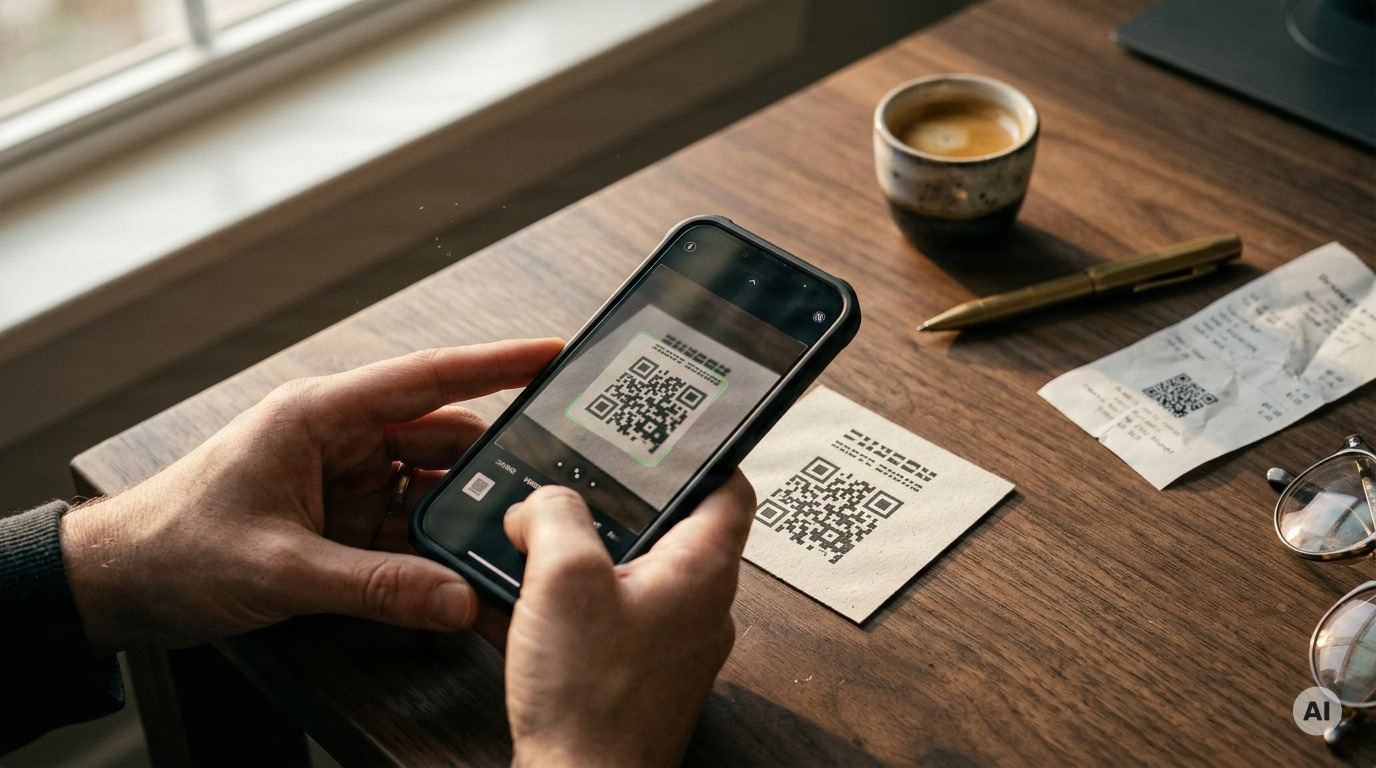
Why a QR Code Stops Working - The 3 Most Common Causes
QR codes usually stop working for one of three reasons: the contrast between the code and its background is too low, the quiet zone - the blank margin around the code - is missing, or the code scans fine but the destination link is broken.
That last point matters, because there are really two different failures hiding behind "my QR code does not work":
- The camera cannot read the code. It refuses to focus or the link pop-up never appears. This points to a design or print problem - low contrast, a cropped quiet zone, pixelation or a code printed too small.
- The code scans but the page fails. The scan works, then the user hits an error page. The image is fine - the URL behind it is dead, mistyped or expired.
The fix is different for each, so guessing wastes time and print budget. Here are the 12 fixes this guide walks through:
- Run an isolation test to find the real cause
- Raise the color contrast to at least 40%
- Restore the quiet zone around the code
- Un-invert light-on-dark color schemes
- Dial back over-customization and logo overload
- Size the code for the scanning distance
- Export in vector format instead of stretching a PNG
- Clean the lens and eliminate glare
- Check Android camera settings, try Google Lens, restart
- Fix a code displayed on a phone screen: brightness, dark mode, refresh rate
- Repair the destination URL
- Check dynamic code expiry and shorten overloaded links
Fix 1: Run This Simple Isolation Test Before Anything Else
Before you redesign anything or blame a phone, isolate the variable. Most guides tell you to "test your code" - this test tells you what is actually broken.
- Generate a plain version of your code: black modules, white background, no logo, no custom colors.
- Print it on standard paper and place it flat under even lighting - no glare, no shadows.
- Scan it with your phone's native camera app.
- If this plain sample fails, the problem is in the code itself or in how it was generated. If it scans fine, add back one variable at a time: your brand colors, then the logo, then the final size, then the actual surface (glossy menu, window decal, poster board).
- The first change that kills the scan is your culprit. Fix that one thing instead of redesigning everything.
Compare the cost of one test print with the alternative: a restaurant that prints a full run of laminated menus with a dead code, or an agency that ships a batch of event posters nobody can scan. The reprint bill, the shipping delay and the awkward client call all cost far more than one test print.
Test on at least 3-4 devices before printing
One successful scan on your own phone proves nothing - your phone is one hardware and software combination out of thousands in your customers' pockets. Before sending anything to print, cover a realistic spread:
- A recent iPhone with the native Camera app
- Android phones running different versions of the operating system, each with its native camera
- Google Lens
- One third-party scanner app
If all four scan the final design quickly, from a normal distance, you are safe to print.
Design Fixes: Contrast, Inverted Colors and the Quiet Zone
Design errors are the most frequent cause of failed scans. Four fixes cover almost all of them.
Fix 2: Raise the contrast to at least 40%
Scanners need to clearly separate the dark modules from the light background. A black code on white is the safe default. Brand colors can work, but only with a strong difference between foreground and background - aim for at least 40% contrast. A quick rule of thumb: preview the code in grayscale, and if the modules and background do not look clearly different in gray, a scanner will struggle too. Light-on-light combinations like yellow on white fail, and so do dark-on-dark pairings like navy on black. Skip gradients and busy or patterned backgrounds entirely; use solid colors.
Fix 3: Restore the quiet zone
That blank margin around the code tells the scanner where the pattern starts and stops. Keep it at least four modules wide on every side - a module is one of the small squares that make up the code. Cropping the margin, printing text right against the edge, or placing the code on a patterned background hides the three corner position markers and the scan dies before it starts.
Fix 4: Un-invert your colors
An inverted code puts light modules on a dark background. Most scanners expect the opposite, so many camera apps simply refuse to read it - some modern ones cope, but you cannot control which phone your customer holds. The safe fix: keep the modules darker than the background, or place the code on a light backing panel inside the dark design. If branding forces an inverted scheme, push the contrast as high as possible and test it rigorously across iPhones, Androids and third-party apps before printing. More detail in our guide to inverted QR codes.
Fix 5: Dial back the customization
Excessive logos, decorative shapes and extra colors interfere with the code's readability. If you brand the code, keep branding elements limited to the edges or a center logo, keep the core structure square, and leave the scannable areas untouched.
Print Fixes: Size, Distance and Resolution
Fix 6: Size the code for the scanning distance
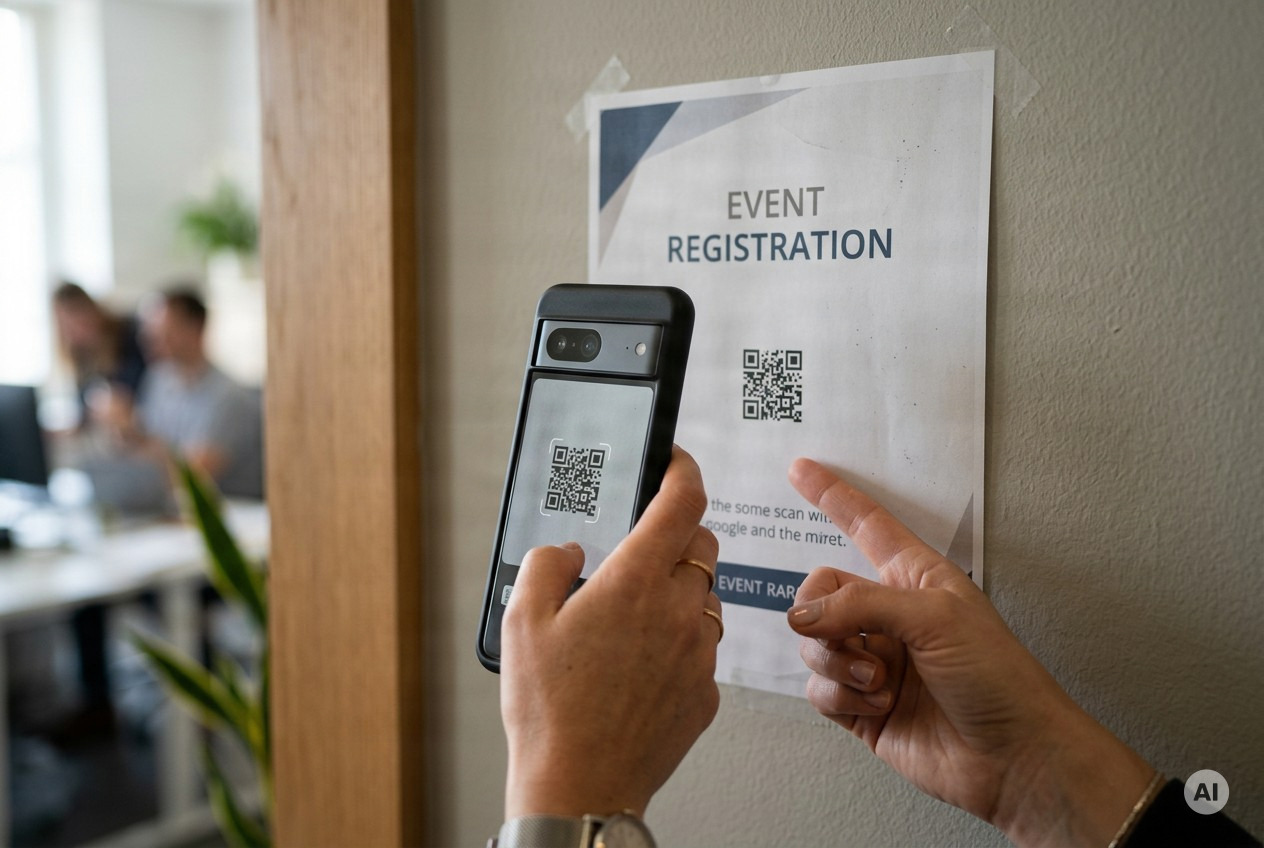
A QR code that looks fine on your monitor can still fail on paper for one plain reason: it is too small for the distance people scan it from. The working rule is simple - the code should be about one tenth of the scanning distance. A code meant to be read from 20 meters, like a billboard, needs to be about 2 meters across.
For close-range materials, do not go below the floor. Codes smaller than about 0.8 x 0.8 inches (2 x 2 cm) become unreadable, and 1.2 x 1.2 inches (3 x 3 cm) is the safer minimum for anything printed. A code that is too large to fit in the camera frame can fail just as easily as one that is too small. Whatever the placement, the math stays the same: measure how far away your typical scanner stands, divide by ten, and never dip under the print minimum. Run your exact distance and material through our QR size calculator before you send files to the printer.
Fix 7: Export vector, not a stretched PNG
Stretching a small PNG or JPEG to fit a poster blurs the sharp edges of the modules, and a blurry code is a broken code - the camera cannot lock onto fuzzy squares. Export in a vector format like SVG or EPS instead. Vectors scale to any size without losing sharpness, which is why they are the standard for print work. If you must use a raster file, download it at high resolution from the start rather than resizing a small one. Our guide to preparing QR codes for printing covers export settings in detail.
Phone and Camera Fixes When a Code Will Not Scan
If the printed code passes your isolation test but a specific phone still refuses to read it, the problem is on the device side.
Fix 8: Clean the lens and kill the glare
Wipe the camera lens - fingerprints, dust and smudges get in the way of a clean scan. Avoid glare: codes behind glass, on reflective surfaces or on glossy paper are difficult to scan because of light reflections, so shift your angle or step out of direct light. When you control the placement, prefer matte backgrounds over reflective ones, and keep the code at a comfortable height - codes positioned too high or too low are hard to scan.
Fix 9: Check Android camera settings, then Google Lens
On some Android phones, the camera app has a "Scan QR codes" setting that can end up toggled off - users report this especially after a security or OS update. Open the camera app settings and check that toggle before installing anything new. If the native camera still fails, Google Lens will often read a code the camera app misses, and a simple restart can clear temporary software glitches.
Some older smartphones do not have a built-in QR scanner in the camera app at all. In that case, Google Lens or a dedicated third-party scanner app will do the job - and for printed campaigns, printing a short backup URL next to the code gives users a fallback. Our guides cover scanning step by step on Android and iPhone.
Fix 10: When a code on your phone screen will not scan
Tickets and passes displayed on a phone screen can fail at the reader even though the code itself is valid. Android community threads report this after OS updates: changes to screen brightness, contrast, smoothing and refresh rate can make on-screen codes harder for older ticket scanners, like the ones on buses, to read. The workarounds reported to help:
- Set screen brightness to maximum while showing the code
- Turn off Night Light, Eye Comfort or Extra Dim modes
- Disable dark mode while the code is displayed
- Switch to a 60Hz refresh rate if your phone runs higher
- Use the app's "High-contrast" or "Classic QR" display option if it has one
These steps improve the contrast and sharpness of the code on the screen so older scanners can read it.
The Code Scans but the Link Is Dead - Fixing the Destination
Fix 11: Repair the destination URL
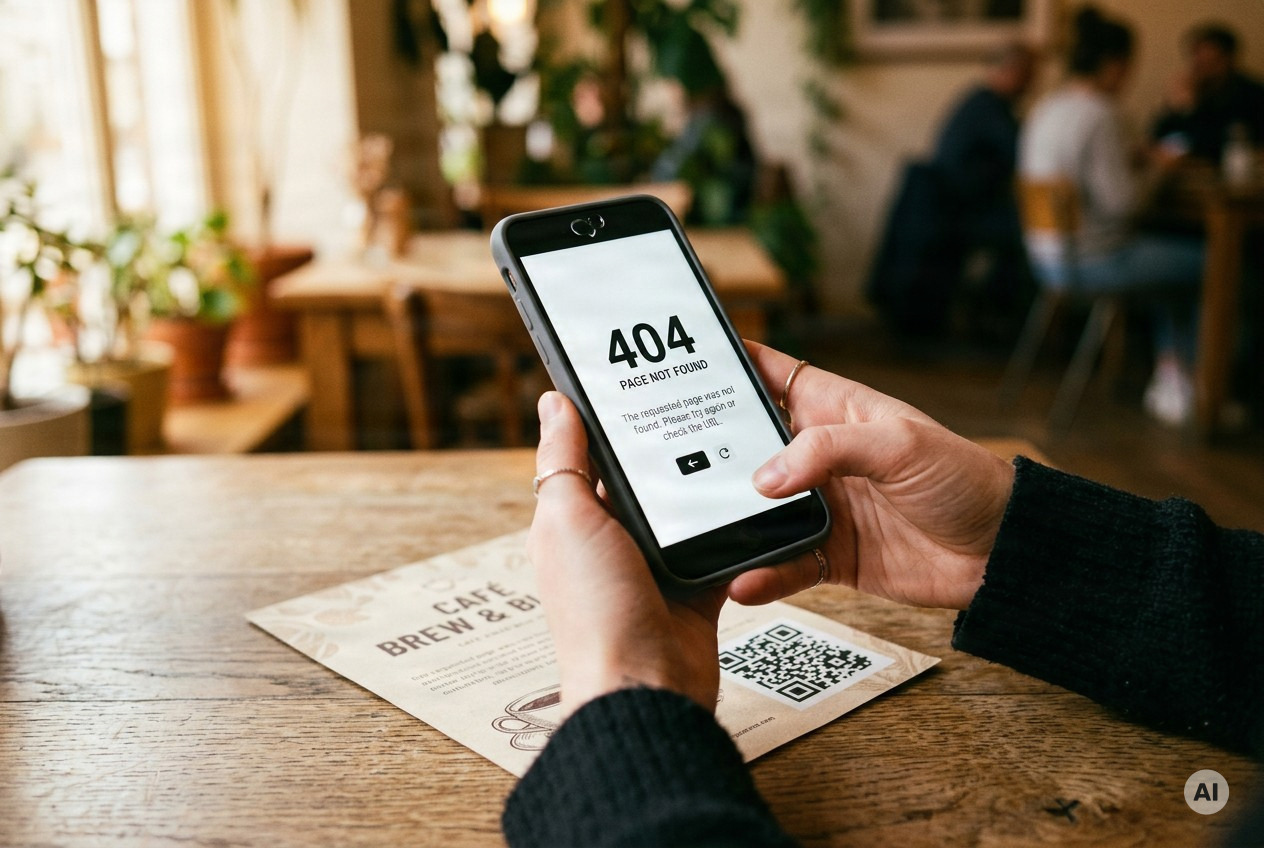
When a code scans instantly but drops the user on an error page, the image is doing its job - the URL behind it is not. Typos, a missing "https://" prefix or a broken link prevent proper redirection to the destination page. Double-check all data before generating the code, then open the encoded URL in a phone browser and test it across multiple devices and browsers. If the page itself is broken or unusable on a small screen, fix the page - the code is fine.
Fix 12: Check expiry and shorten overloaded links
Whether you printed a static or a dynamic QR code matters here. Some dynamic QR codes stop working after reaching a scan limit or when their campaign expires - if a code that used to work suddenly leads nowhere, check whether the campaign behind it is still active, and set clear campaign timelines up front to prevent unplanned deactivation.
Overloaded links cause a different failure: long URLs and too much embedded data make the code dense and hard to scan in the first place. Keep the embedded content concise, use a dynamic QR code that keeps the printed pattern short, or run the link through a URL shortener before generating.
How to Catch a Code That Fails Silently
The failures above are the ones you can test for before printing. The dangerous ones happen later: a destination that was fine on print day starts returning errors months in, a campaign quietly expires, or a landing page gets taken down. Nobody scans a broken code and files a report - they just move on. With a static code you have no way to know; the first signal is a drop in business you cannot explain.
Two habits catch these silent failures:
- Watch your scan counts. A dynamic code logs every scan. A code that was getting steady scans and suddenly flatlines is telling you something changed in the field - a covered sticker, a torn poster, or a dead link. Checking the trend weekly turns a silent failure into an early warning.
- Turn on link-health alerts if your platform has them. Some tracking platforms check each code's destination automatically and email you when it breaks. Scanely, for example, runs a daily check of every code's link on paid plans and sends a dead-link alert after a destination fails two days running, plus a silent-code alert when a busy code drops to zero scans - so you hear about a break within a day instead of from an annoyed customer.
If your codes are printed on materials you cannot cheaply reissue, this monitoring is the safety net that turns "why did nobody tell me" into a same-day fix.
Pre-Print Checklist: Catch Every Failure Before It Costs You a Reprint
Print day is where every earlier mistake becomes an invoice. Run this checklist on the final artwork file, not a draft:
- Contrast checked. Dark modules on a light background, at least 40% contrast, solid colors only.
- Quiet zone intact. A blank margin at least four modules wide on every side, with nothing crowding the code.
- Size matches distance. Divide the typical scanning distance by ten, and never go below 1.2 x 1.2 inches for print.
- Vector export. SVG or EPS file sent to the printer, not a stretched PNG.
- Destination verified. The URL starts with https://, has no typos, and loads correctly on a phone.
- Campaign timeline set. If the code is dynamic, confirm the timeline so it does not deactivate mid-run.
- Tested on 3-4 devices. iPhone, Androids on different OS versions, Google Lens and one scanner app - on the real material, in the real lighting.
For retail teams and agencies shipping signage, shelf tags or packaging in batches, make this a standing step in the proofing workflow. One quick check is the cheapest insurance a print run can get.
FAQ: Quick Answers on QR Codes That Will Not Scan
Why does my QR code scan on one phone but not another?
Hardware and software differ more than you would expect - which is why testing across an iPhone, Android devices on different OS versions and third-party apps before printing matters. Some older smartphones have no built-in QR scanner at all; on those devices, Google Lens or a dedicated scanner app is the fix.
Do QR codes expire?
Some dynamic QR codes expire after reaching a scan limit or when their campaign ends. If a previously working code goes dead, check the campaign status behind it before blaming the print.
What is the minimum printable size?
Do not go below 0.8 x 0.8 inches (2 x 2 cm), and treat 1.2 x 1.2 inches (3 x 3 cm) as the safe minimum for print. For anything scanned from farther away, divide the scanning distance by ten - our size calculator does the math.
Why does my code scan but open the wrong page or an error?
The image is fine - the data behind it is not. The common causes are a typo in the URL, a missing "https://" prefix or a link that has since broken. Verify the exact URL you encoded, fix it, regenerate if needed, and test on multiple devices and browsers.
How would I even know if my QR code broke after I printed it?
You usually will not, unless you monitor it. Watch the scan trend for a sudden drop, and use a platform with automatic link-health alerts - Scanely checks every code's destination daily on paid plans and emails you the moment a link dies or a busy code goes silent.