How to Scan a QR Code From a Picture on Any Device
To scan a QR code from a picture, long-press it in iPhone Photos or open it in Google Lens on Android - or upload the image to a browser scanner.
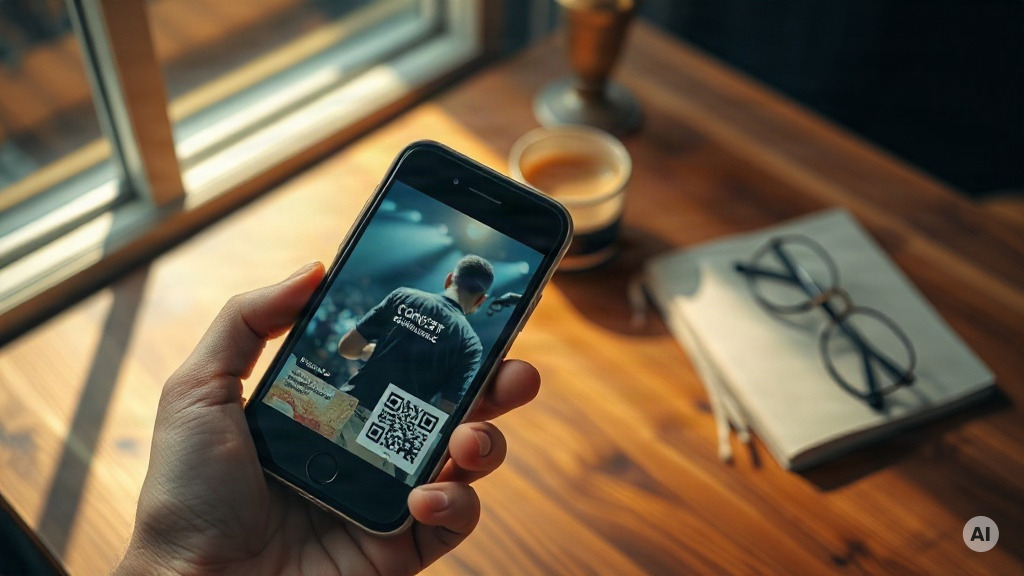
Can You Scan a QR Code From a Picture?
Yes. A QR code saved as a photo or screenshot can be scanned right from the image - no second phone required. A QR code stores its data in a two-dimensional grid of black and white squares, and a decoder reads that pattern of squares and lines whether it comes through a live camera or a saved picture file.
That matters when the code arrives as an email attachment or a screenshot sitting in your gallery. You have three practical routes:
- iPhone: long-press the code in the Photos app
- Android: use Google Lens, Bixby Vision, or Circle to Search
- Any device: upload the image to an online QR code scanner in your browser
How to Scan a QR Code From a Picture on iPhone
On an iPhone, a built-in route runs through the Photos app - no extra download, no third-party scanner. Any iPhone running iOS 11 or later can scan QR codes natively, so this works on hardware going back years.
Here is the full process:
- Save the picture or screenshot. If the QR code arrived by email or text, save the image to your camera roll, or take a screenshot - it lands in the Photos app either way.
- Open the image full screen. Find the picture in Photos and tap it so the code fills as much of the screen as possible.
- Long-press directly on the QR code. Press and hold your finger on the code itself, not the surrounding image.
- Tap Open in Safari or Open in Chrome. A pop-up menu appears with several options - Open in Safari, Open in Chrome, Copy Link, Add to Reading List, and Share. Tap the open option to jump straight to the linked content, or Copy Link if you want to inspect the URL before anything goes to press.
If the long-press menu never appears, there is a fallback: open a browser-based scanner in Safari, tap the upload area, and choose the image from your Photos. For every other scanning route on iOS, see our guide to reading QR codes on iPhone.
How to Scan a QR Code From a Photo on Android
Live scanning is already built in on Android: most phones running Android 8 or later read QR codes straight from the default camera app, and you can also swipe down and tap the QR scanner icon in Quick Settings. A code that is already saved on the phone - a screenshot or photo in the gallery - is read with a separate set of tools. You have three built-in options, no third-party app required. For live-scanning basics, see our guide to scanning QR codes on Android.
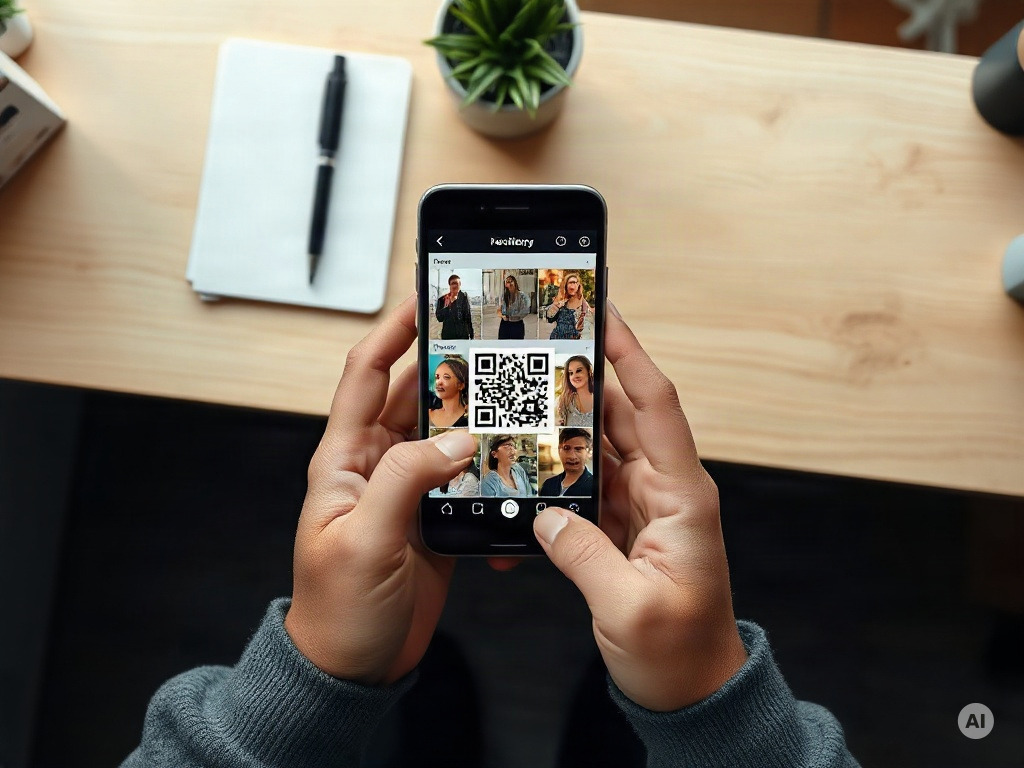
Google Lens and the phone gallery
Google Lens gives you two routes to the same result:
- From Lens: launch Google Lens, choose the QR code picture from your gallery, and wait for the pop-up once the code is recognized. Tap the link to open the destination.
- From the gallery: open the picture directly in your phone gallery and tap the Google Lens icon in the top right corner. A link appears as soon as the phone recognizes the code.
Either way works - pick whichever starting point is closer to hand.
Samsung Bixby Vision
On a Samsung Galaxy, Bixby Vision handles saved images:
- Open the QR code picture in the Gallery app.
- Tap and hold the Bixby Vision icon.
- Select Lens and let Bixby Vision scan the code.
- Tap the pop-up link to reach the content.
Circle to Search for codes already on your screen
A QR code sitting on your own screen - embedded in an email, a PDF, a photo, an app, or a video - used to mean awkward workarounds: scanning with a second phone, emailing a screenshot to another device, or installing a third-party scanner tool. Circle to Search removes that step. It scans QR codes and barcodes on Android directly from whatever is on screen, no camera involved:
- Long-press the home button or navigation bar (on supported Android phones) to bring up Circle to Search.
- Circle or tap the QR code on the screen.
- Tap the link that appears to open the destination.
Scan a QR Code Image in Your Browser - No App Needed
Not every QR code arrives on a phone. When the code sits in an attachment or a screenshot on your laptop, an online QR code scanner handles it on any device - phone, tablet, or desktop - with no app download and no account.
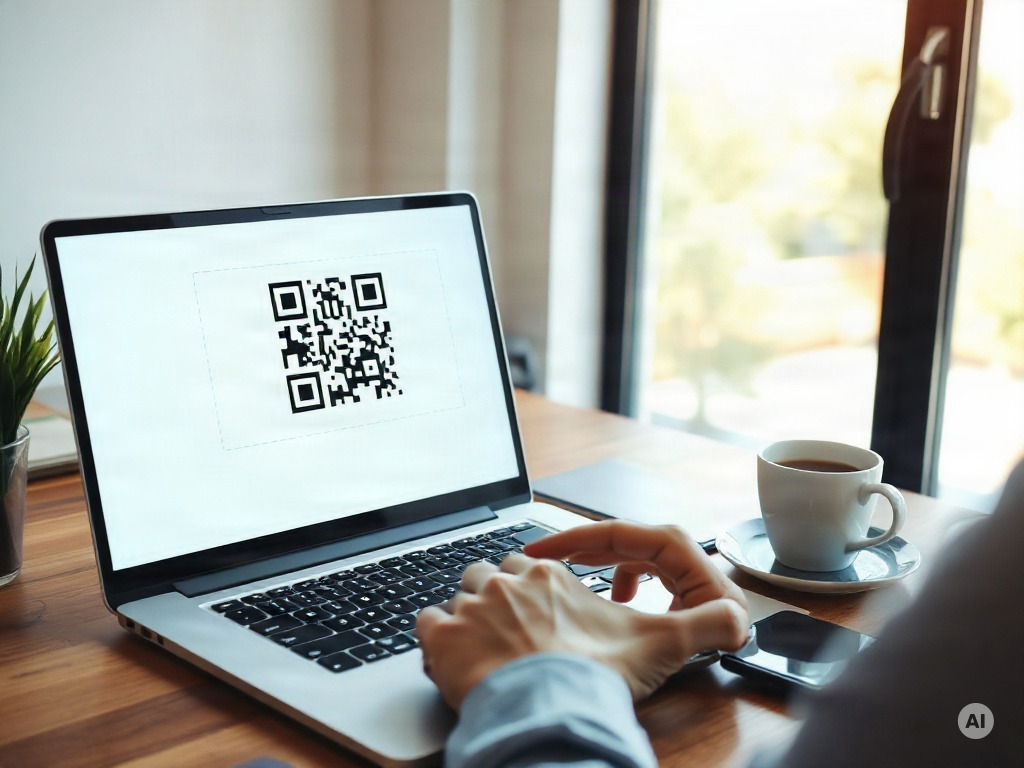
The process takes seconds:
- Open a browser-based QR scanner such as Scanely's free QR scanner - it decodes entirely in your browser.
- Drag and drop the image into the upload area, or click to browse files. Supported formats include PNG, JPG, WEBP, GIF, and BMP.
- On desktop, skip the file step entirely: take a screenshot, then press Ctrl+V (Cmd+V on Mac) directly on the page to paste it.
- Read the decoded result - the encoded contents appear on screen exactly as they were written into the code.
In good browser scanners, decoding runs entirely in your browser using JavaScript. The image is never sent to a server and nothing is stored - it never leaves your device.
Some of these tools also run a cascade of three decoders - the browser's native BarcodeDetector, ZXing, and jsQR - so a code that one library rejects usually gets caught by another; others retry automatically with a ZXing fallback after a failed first attempt.
If the upload fails anyway, the cause is usually one of a few known culprits - covered in the troubleshooting section below.
What Gets Decoded From the Image
A scanner shows you the exact encoded content - character for character, exactly as it was written into the code. Nothing is interpreted or rewritten. If the code holds a URL, you see the full link. If it holds text, you see the raw text.
The common types you will run into:
| Type | What it does |
|---|---|
| URL | Links to any webpage |
| Plain text | Carries a plain text message |
| vCard | Holds a digital business card with contact info |
| Wi-Fi | Connects to a wireless network |
| SMS | Opens the SMS composer on a smartphone |
| Call | Starts a phone call directly |
| Event | Adds a calendar event |
| Opens an email draft to a recipient | |
| Location | Pins GPS coordinates on a map |
For Wi-Fi codes specifically, a dedicated Wi-Fi QR scanner can reveal the network name (SSID), password, and security type in plain text - useful for connecting a laptop manually.
Because the output is verbatim, an upload scanner is worth considering as a proofing step before a print run: decode the designer's file and read the raw output. Is the URL exactly right, does the vCard have the correct phone number, is the Wi-Fi password spelled correctly?
Why a QR Code in a Picture Won't Scan - and How to Fix It
When a QR code in a picture refuses to decode, the same handful of causes shows up over and over:
- Low resolution. Compressed screenshots and small thumbnails are among the most common causes of a failed decode.
- A cropped or covered code. The entire code must be in the image - including the white border around it, called the quiet zone.
- Low contrast. Dark grey on dark grey, or any color pairing that reads fine to your eye, can sit below what a decoder can distinguish.
- Heavy styling. QR codes carry built-in error correction, but a large logo or artistic styling can eat too much of that redundancy for the code to remain readable.
The fixes map directly to the causes:
- Get a higher-resolution version. Try a sharper photo, or zoom in before taking the screenshot.
- Crop tighter to the code. Trim the busy poster or packaging around it, but keep the white quiet zone intact.
- Boost contrast in any image editor before uploading.
- Scanning a screen with a webcam? Glare kills the read. Tilt the screen, or skip the camera entirely and paste a screenshot instead.
If the code still fails after all four, see our full guide on QR codes not working.
FAQ: Scanning QR Codes From Pictures
Is an online QR code scanner private?
With scanners that decode on your own device, yes - the picture is never uploaded anywhere and nothing gets kept after the scan.
Can a scanner find a QR code inside a larger image, like a poster?
Often, yes. ZXing in particular can pick a code out of a busy background - a poster, a screenshot, product packaging. If it struggles, crop the image closer to the code and try again.
Do upload scanners handle rotated or angled codes?
Yes. These tools test the image at several rotations and compensate for uneven lighting, so a photo taken at an angle usually decodes anyway.
Can I scan a QR code on a laptop?
Yes, three ways: upload the saved image to a browser scanner, press Ctrl+V (Cmd+V on Mac) to paste a screenshot directly, or use your webcam to scan a physical code.
Is it safe to open a link from a scanned image?
A QR code can link to any webpage. If the image comes from an unknown or untrusted source, review the decoded link (for example with the Copy Link option) before opening it.
Sharing QR codes in images yourself? A static code pasted into a picture can never tell you whether anyone scanned it. Generate a free dynamic QR code instead - the destination stays editable after the image is shared, and every scan is counted with location, device and time.