Picture QR Code: Create, Share, or Scan Images
A picture QR code can open an event gallery for photo uploads or be decoded from a saved image. Set access, share the event link, and scan saved files.
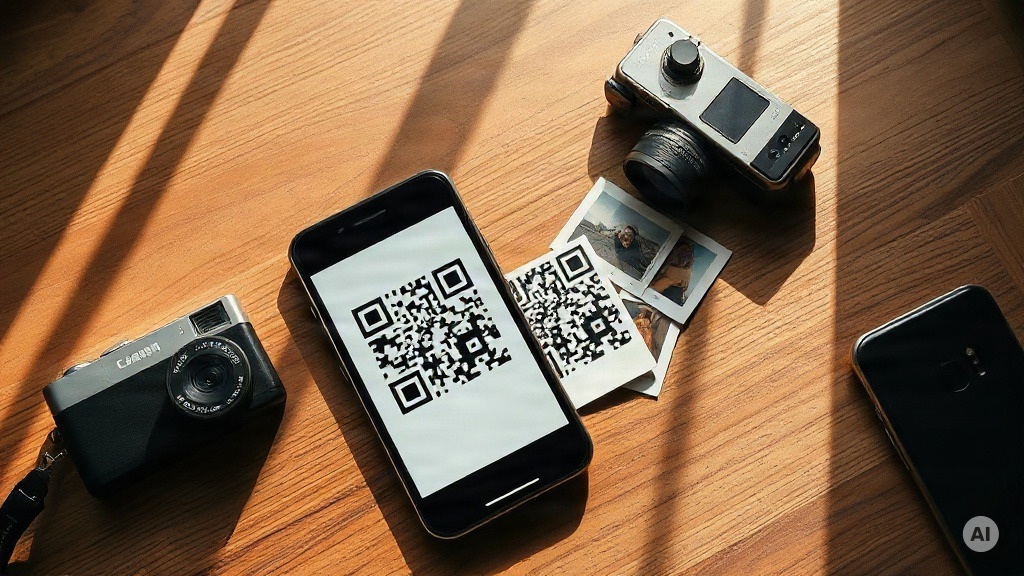
What is a picture QR code?
A picture QR code can describe two documented workflows. One uses a QR code to share an event page where guests can upload pictures and videos. The other starts with a QR code inside a saved photo or screenshot and uses a browser scanner to decode it.
A QR code that opens an event gallery
PicturesQR documents a personalized event page that hosts can share through a QR code or custom event page URL. Guests upload pictures and videos to the page, and the host can download files individually or together in a .ZIP file.
The provider states that guests can upload without installing an app or creating an account. It also documents two access controls:
- A PIN can limit viewing and uploads to invited guests.
- A private-gallery option can make uploads visible only to the host.
A QR code decoded from a saved picture
Hovercode reads standard QR codes from uploaded images, including screenshots and photos. It displays the encoded content, which may be a URL, vCard, Wi-Fi credentials, or plain text.
ScanQR also accepts uploaded images and screenshots. It additionally documents webcam scanning.
How to create a picture QR code for photo sharing
The following workflow reflects the event-page functions documented by PicturesQR:
- Create a personalized event page.
- Choose the intended access setting.
- Optionally add a cover photo, personal message, and custom color to the event page.
- Share the page using its QR code or custom event page URL.
- Let guests upload their pictures and videos.
- Download uploads individually or in a
.ZIPfile.
Use the PIN option when invited guests should be able to view or add uploads. Use the private-gallery option when uploads should be visible only to the host.
These functions describe PicturesQR specifically. Check the selected provider's current documentation before publishing an event page.
Which event-gallery features should you check?
Choose a service by checking its documented settings against the experience you want to provide. PicturesQR describes the following features:
| Decision | Documented PicturesQR option |
|---|---|
| Guest contributions | Picture and video uploads |
| Guest access | No app download or account creation |
| Restricted access | PIN for invited guests who view or add uploads |
| Host-only viewing | Private gallery visible only to the host |
| Downloads | Individual files or one .ZIP file |
| Upload period | A 12-month upload window |
| Download period | 12 months from the upload start date |
| Event-page design | Cover photo, personal message, and custom color |
Confirm these documented periods and other service details when planning your event gallery.
What about logos and artistic styling?
ScanQR identifies damaged or heavily styled QR codes as a possible cause of failed decoding. Its documentation specifically notes that codes with logos or artistic styling can lose too much error-correction data to remain readable.
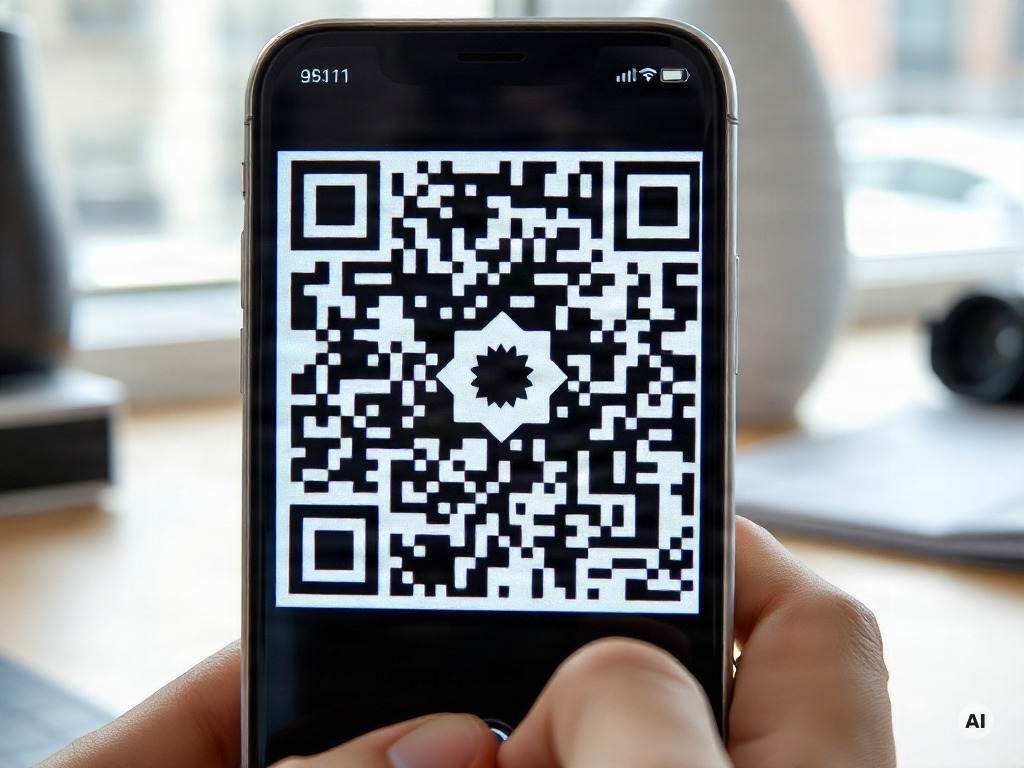
Use the documented scanning checks below to assess the available version of the code.
How to scan a QR code from a picture or screenshot
A browser-based scanner can decode a QR code from an uploaded image:
- Open the scanner in a browser.
- Drag the image into the upload area or browse for the file.
- Paste a screenshot if the selected scanner supports pasting.
- Read the decoded result displayed by the scanner.
ScanQR specifically lists support for PNG, JPG, WEBP, GIF, and BMP files. Hovercode's supplied documentation does not provide a file-format list.
For Hovercode, the recommended image is clear and well-lit, with the QR code occupying a substantial part of the picture.
Scanner privacy is separate from gallery access
Hovercode states that decoding occurs in the browser, the image is not sent to a server, and nothing is stored. ScanQR likewise states that images and decoded QR data are not uploaded to its servers.
These statements apply to those two documented scanners. Event-gallery access is controlled separately through the gallery provider's settings.
Fix scanning failures
Hovercode and ScanQR document several causes of failed scans and corresponding actions:

| Problem | Documented action |
|---|---|
| Blurry or low-resolution image | Use a sharper or higher-resolution version. |
| Partly cropped or covered code | Use an image containing the entire code, including its white quiet zone. |
| Code occupies too little of the image | Crop closer to the code without cutting it off. |
| Low contrast | Increase the contrast in an image editor. |
| Screen glare | Tilt the device to reduce reflections or upload a screenshot instead. |
ScanQR also lists damage, logos, and heavy artistic styling as possible causes of failure.
Where picture QR codes fit
PicturesQR presents its event-page workflow for weddings, birthdays, graduations, corporate events, and Christmas or holiday gatherings. In each documented case, the QR code shares an event page where guests can contribute pictures or videos.
Hosts can then collect the uploads in the event gallery and download them individually or together in a .ZIP file.
Picture QR code FAQ
Does a photo-sharing QR code store the photos?
In the documented PicturesQR workflow, uploads are collected in the event gallery. The QR code and custom URL are used to share the event page; the cited material does not describe the code itself as file storage.
Can guests upload without an app or account?
PicturesQR states that its guests can upload without downloading an app or creating an account. This answer applies to that provider's documented service.
Can I scan a QR code from a screenshot?
Yes. Hovercode and ScanQR document scanning from saved screenshots or image files.
Which image formats can ScanQR decode?
ScanQR lists PNG, JPG, WEBP, GIF, and BMP. The supplied Hovercode documentation does not list supported file formats.
Is gallery access controlled by the QR code?
PicturesQR documents access through separate event-page settings. Its PIN option allows invited guests to view or add uploads, while its private-gallery option makes uploads visible only to the host.
What should I check before publishing?
Select the intended event-page access setting and consult the provider's current guidance. Before collecting, displaying, or reusing guest media, confirm that you have the guidance you need. If you do not, pause publication and ask the provider or the appropriate authority.
Before acting on a decoded result, ask whether you recognize and understand it. If you do not, pause and request guidance from the relevant service.